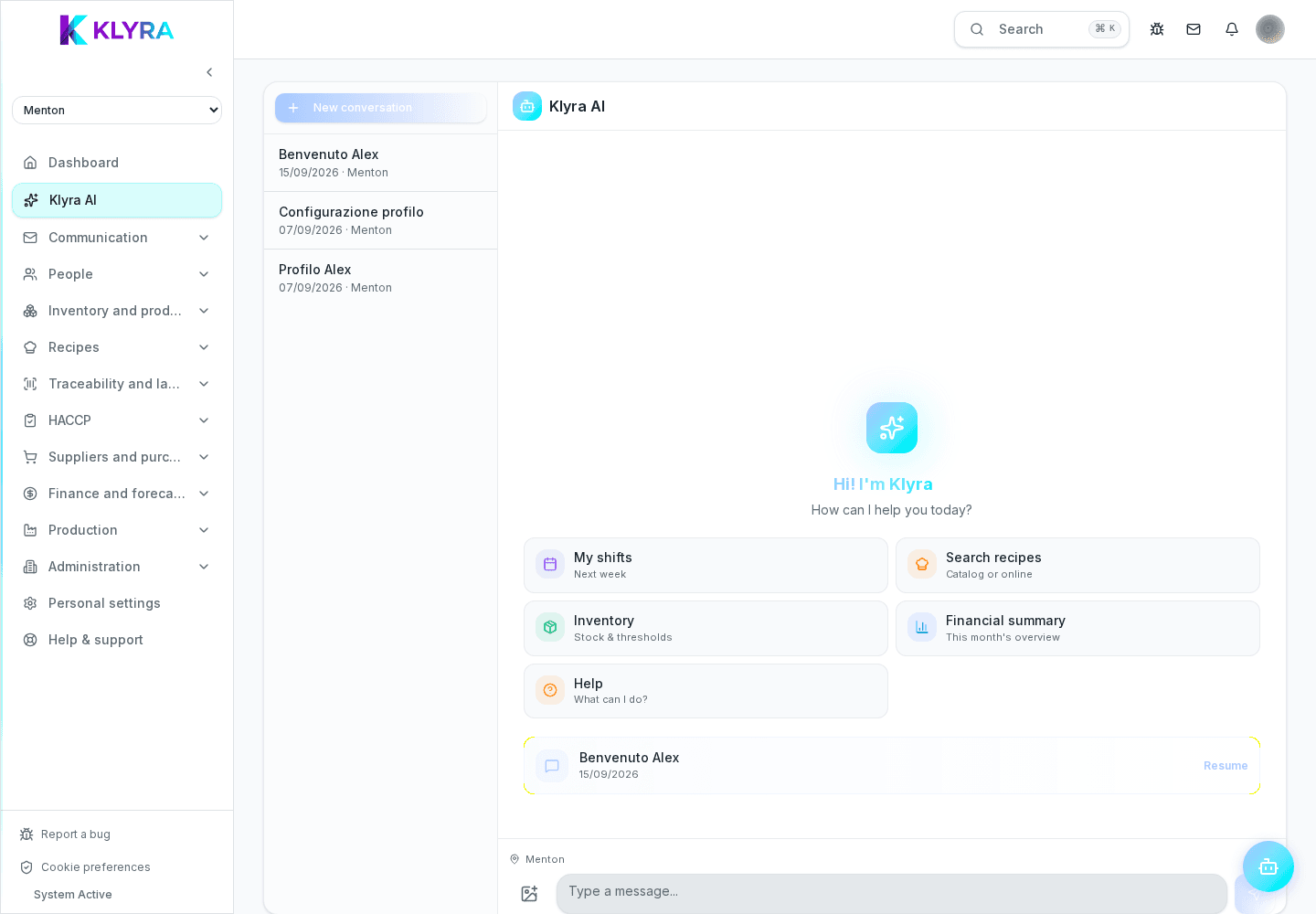
The assistant can spot products without an up-to-date label and suggest printing one, but you always trigger the print yourself.
Among the assistant’s operational proposals is label printing: if it detects a batch without a label or with outdated data, it can flag it and suggest printing an updated one right away. The final decision and the print trigger always remain yours.
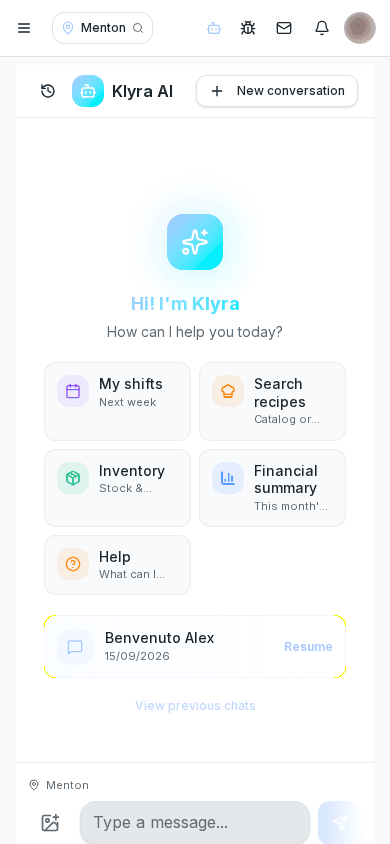
The assistant checks recent batches and declared preparations in the background: if a label is missing or the calculated expiry differs from the printed one, it proposes generating an updated label.
The draft uses the same data as manual printing: product name, batch, production date, calculated best-before/use-by date and traceability QR code.
Confirming the suggestion sends the print job to the Brother printer connected to the site, exactly as if you had started it manually from the labels section.
If a product does not require traceability for your organisation, you can ignore the suggestion with no consequences: it never triggers any automatic action.
Does the assistant print automatically without asking me?
No, it only suggests the print: it starts exclusively after your explicit confirmation.
Can I edit the data before printing?
Yes, you can correct the proposed batch, date or expiry before confirming the print.
Does this feature require a specific printer?
It needs a Brother printer already connected to the site through the labels section, same as manual printing.
Was this guide helpful?
Still need help?
Describe the issue: page, location, organisation and role are attached automatically.
Contact support