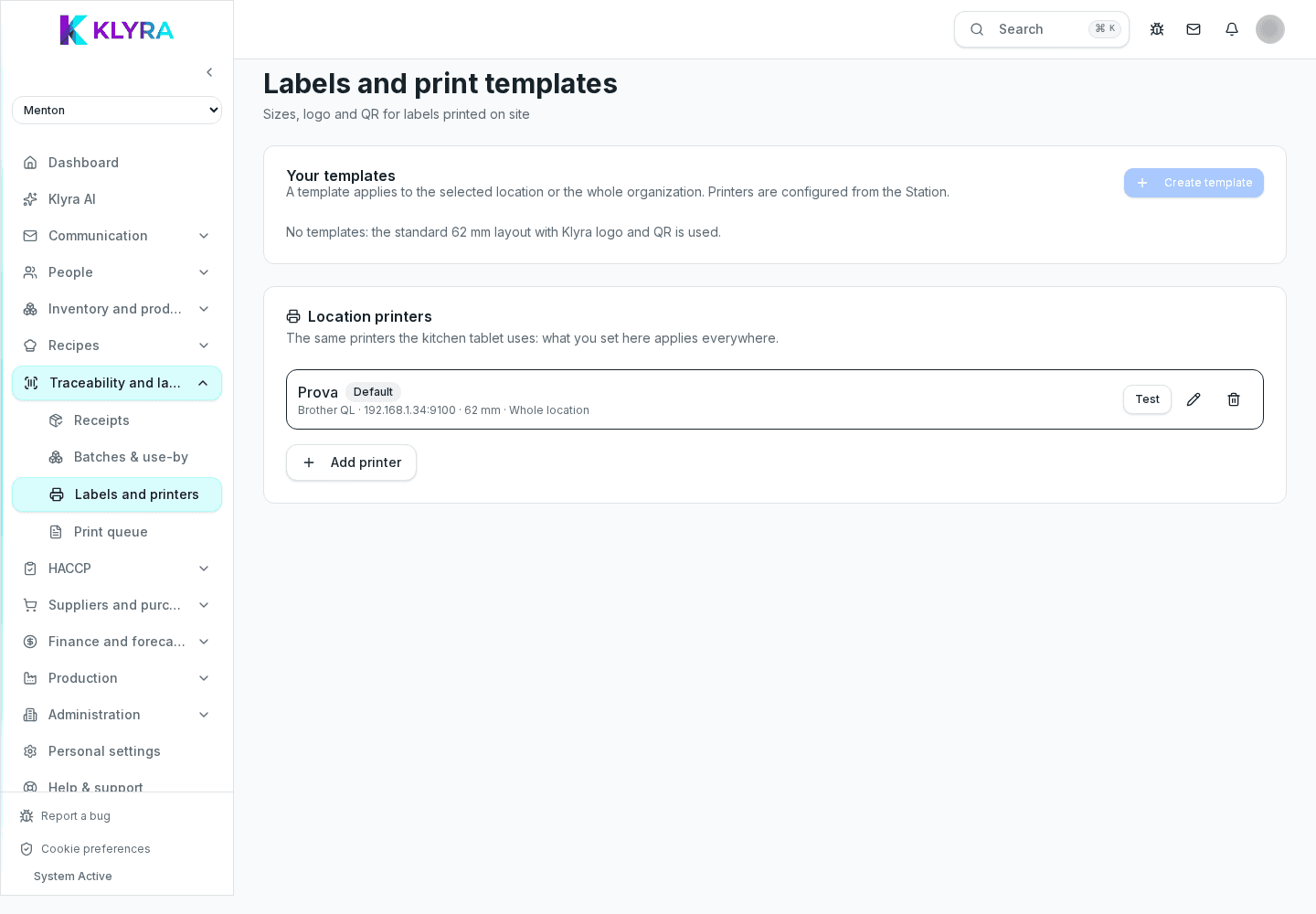
How to generate compliant labels directly from an existing batch, a just-produced recipe or a confirmed goods receipt.
Printing a label always starts from a precise source: an already recorded batch, a just-produced recipe or a confirmed goods receipt. In every case KlyraOS pre-fills the label data from information already in the system, so nothing needs re-entering by hand.
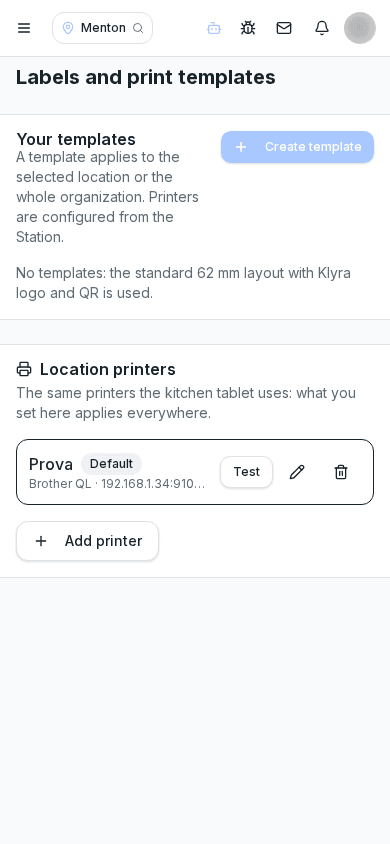
From an existing batch you can generate a new label identical to the original at any time, useful when a label got damaged or when a second container of the same batch needs labelling.
Right after declaring the execution of a recipe, KlyraOS offers to print the label of the just-generated batch, with production date and expiry already calculated from the recipe shelf life.
When goods arrive that need repacking into smaller containers, for example after opening a case, you can print directly from the just-confirmed receipt, keeping the link with the source document.
When a batch is split into several containers or portions, you can print several copies of the label in one operation, stating how many copies are needed without repeating the selection each time.
Can I print a label for a batch received a while ago?
Yes, you can generate a new label from any batch still active in traceability.
Is printing right after production mandatory?
No, but it is recommended right after execution to avoid losing the link between the batch and the physical container.
Can I print different labels for the same batch split into portions?
Yes, using progressive numbering you can distinguish each portion while keeping the same batch and expiry.
What happens if I print too many copies by mistake?
Extra copies simply stay unused: they generate no stock movement and do not affect the batch.
Was this guide helpful?
Still need help?
Describe the issue: page, location, organisation and role are attached automatically.
Contact support