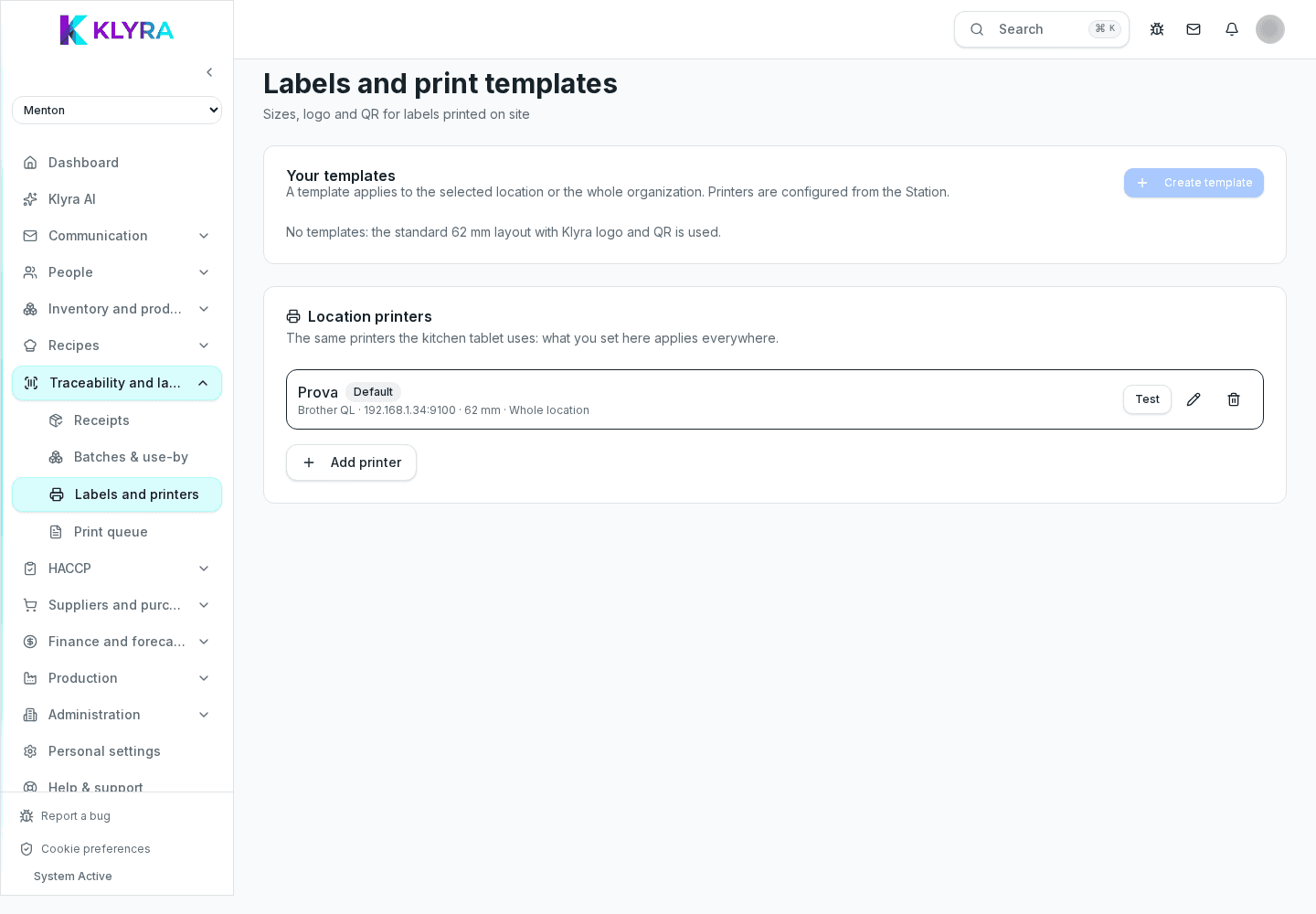
How to configure compliant HACCP label templates for 62 mm rolls, shared across all sites.
The label template defines which information appears on every printout: product name, batch, production date, expiry, allergens and the traceability QR code. Setting one shared template for the organisation keeps labels consistent across all sites and compliant with HACCP requirements.
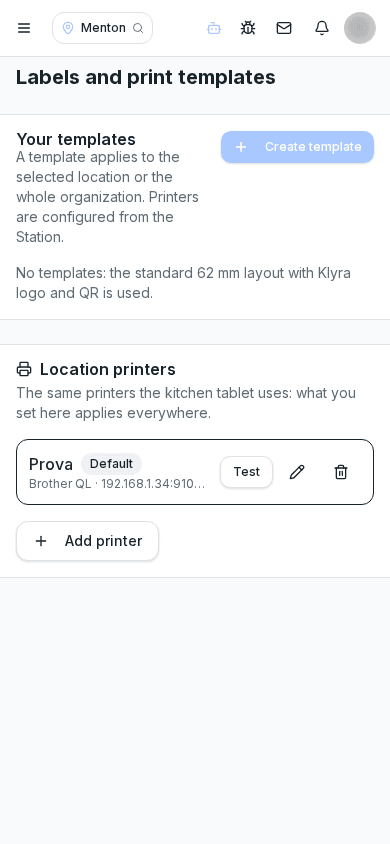
Every template combines fixed fields, like product name and batch, with automatically calculated fields, like the expiry date derived from the recipe or product shelf life. You choose which fields to show and in what order, to respect the 62 mm roll layout without cutting off text.
You can create different presets for different contexts: one label for a product opened in the walk-in, one for a semi-finished production item, one for a portion meant for sale. Each preset stays linked to the base template but can hide or add specific fields.
The template set at organisation level is automatically proposed at every site, so an inspection can rely on identical labels everywhere. A site can still request a justified exception, but the change remains visible to the central admin.
Brother 62 mm rolls impose a width limit: the template includes a preview showing how text actually fits on the label, avoiding unpleasant surprises only discovered at physical print time.
Can I have different templates for different products?
Yes, you can create several presets linked to the same base template and assign them to specific product categories.
Can sites change the central template?
They can request a local exception, but the reference template stays managed by the organisation admin.
Does the template calculate the expiry date on its own?
Yes, if shelf life is set on the product or recipe sheet, label expiry is calculated automatically from the production date.
Do I need a different template for frozen products?
It is recommended, since shelf life and sometimes highlighted allergens differ from the fresh product.
Was this guide helpful?
Still need help?
Describe the issue: page, location, organisation and role are attached automatically.
Contact support