How the KlyraOS web app updates, how to refresh it and how to remove notification devices.
An updated app is faster, more secure and compatible with newly released features. Knowing how to update it and manage the list of devices registered for notifications also helps if you lose a phone.
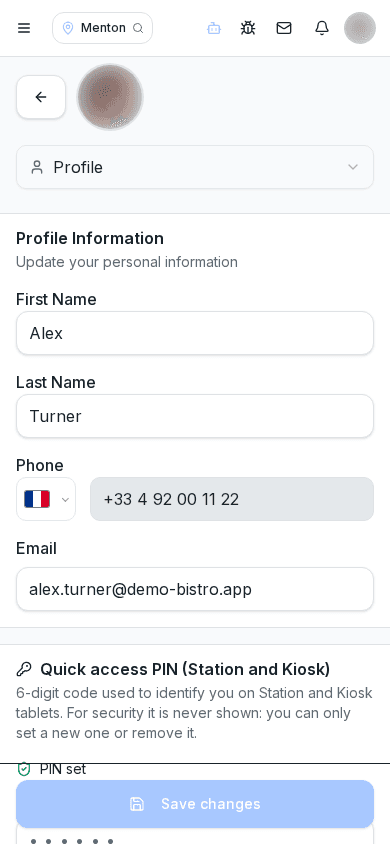
The web app loads the latest version automatically; you can force an update by reloading the page if you notice that a feature described in the help centre does not appear yet on your device.
If you use KlyraOS in a browser at app.getklyra.com you do not need to update anything: the latest version loads automatically each time you open it. If something seems stuck on an old version, simply reloading the page almost always fixes it.
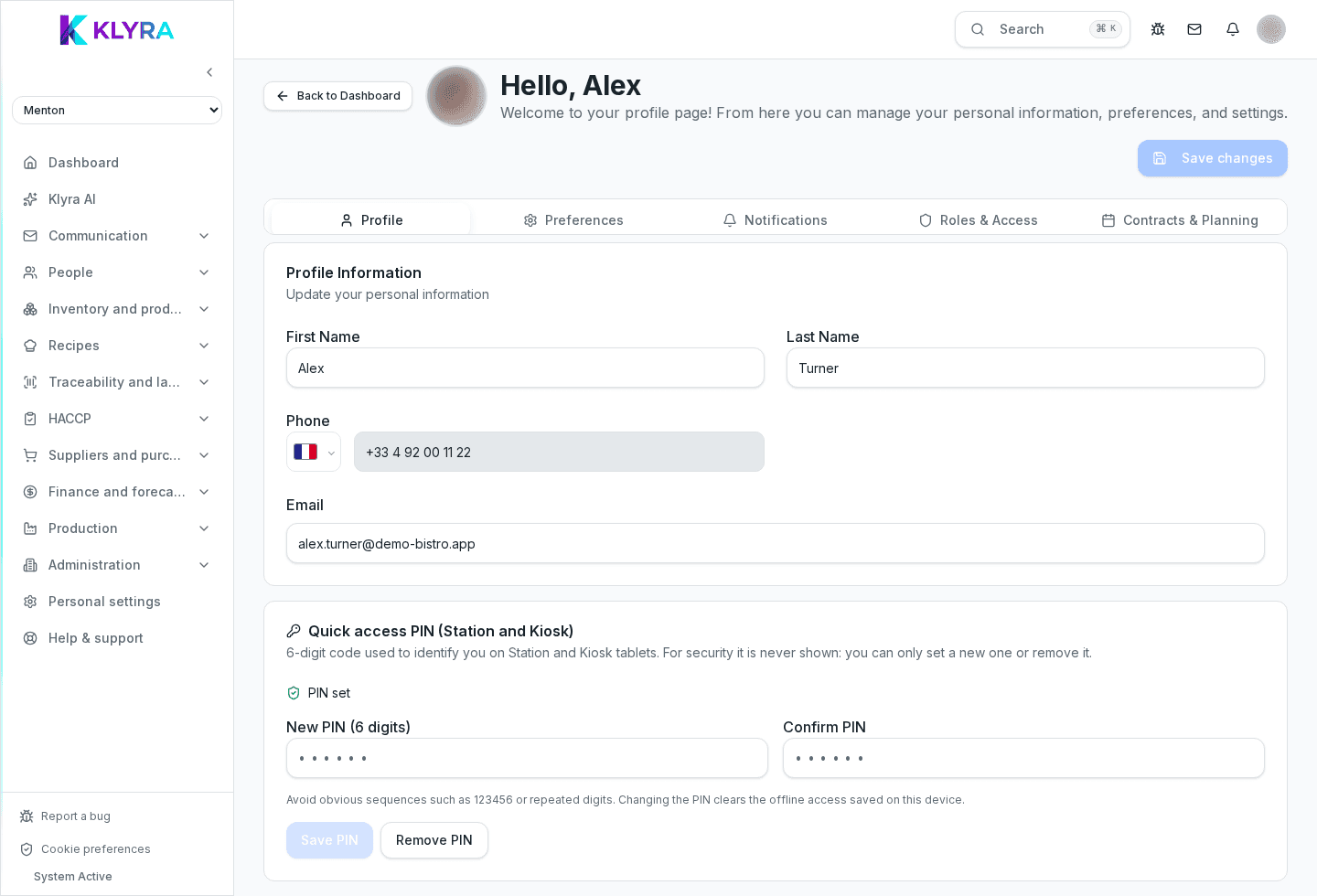
In the notifications tab of your profile you will find the list of devices (phone, tablet, browser) you have used to receive KlyraOS push notifications. This is not a login-session manager: it only lets you see which devices receive notifications and remove ones you no longer use, for example a replaced or lost phone.
If you lose your phone, the priority is to change your account password right away at /reset-password: it is the only way to block new sign-ins from that device, because KlyraOS does not offer a way to remotely end an already-open session.
Do I need to update manually every time?
No, the web app loads the latest version automatically; reload the page if something looks wrong.
What should I do if I lose my phone with KlyraOS installed?
Remove the device from the notification device list in your profile and change your password right away at /reset-password: KlyraOS does not manage active sessions that can be revoked remotely.
Do I need to install anything on app.getklyra.com to get updates?
No, the latest version is served automatically every time you open the page.
Can I remove a device from the notification list even if it is not the one I am currently using?
Yes, you can remove any listed device, regardless of the one you are currently signed in with.
Was this guide helpful?
Still need help?
Describe the issue: page, location, organisation and role are attached automatically.
Contact support