How to install the KlyraOS web app from app.getklyra.com and sign in with your credentials.
KlyraOS runs as an installable web app in your browser at app.getklyra.com: start at app.getklyra.com; native iOS and Android apps are coming soon to the stores. In a few minutes your access is ready on your personal device or on a site tablet.
On Android, iPhone or a computer, open app.getklyra.com. Add the web app to your Home screen to launch it like an app without waiting for the native store releases.
The public site www.getklyra.com presents the product; open and install the web app from app.getklyra.com. If someone sends you a link on another domain, do not enter your credentials there.
On first launch you are asked to sign in with the email and password you created during account activation, or with your PIN if your manager has already set one up. Right after, you choose your active site: it determines what you see in the dashboard, inventory and shift planning.
On your personal phone the app stays linked to your profile: you can see shifts, receive notifications and use the scanner for batches and products. On shared tablets at the site, the app is often used in Station mode for clocking in and out: there, your personal login is not needed, the site code is what matters.
Can I download KlyraOS from www.getklyra.com?
No, the public site presents the product but no longer distributes the app: use the web app at app.getklyra.com; native iOS and Android apps are coming soon.
Do I need a different app for iPhone?
No, on iPhone and on computers you use app.getklyra.com in a browser: use the same installable web app; native iOS and Android releases are coming soon.
Can I sign in on several devices at once?
Yes, your profile can be open on several personal devices; clocking in and out remains reserved for Station.
What if I forget my PIN?
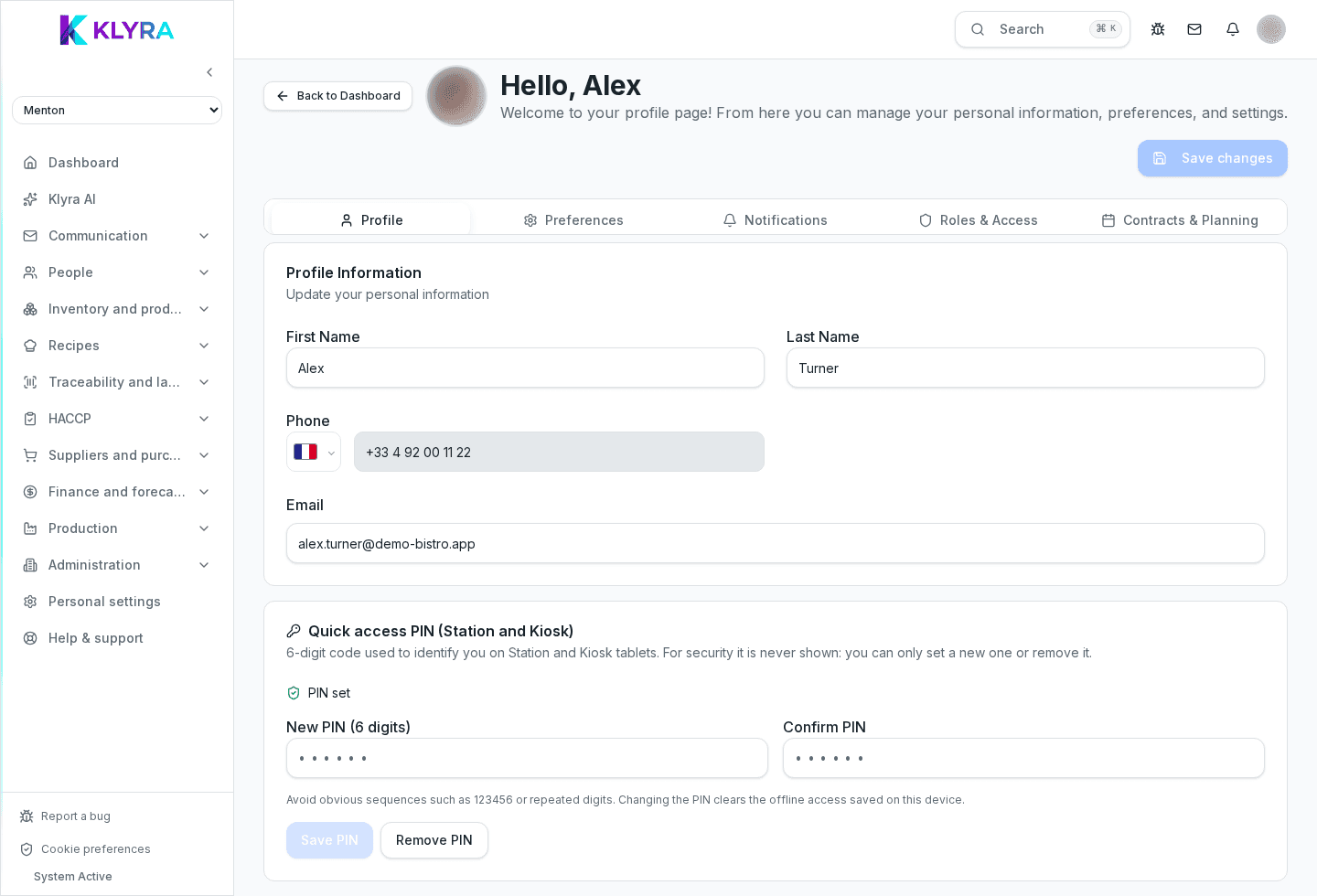
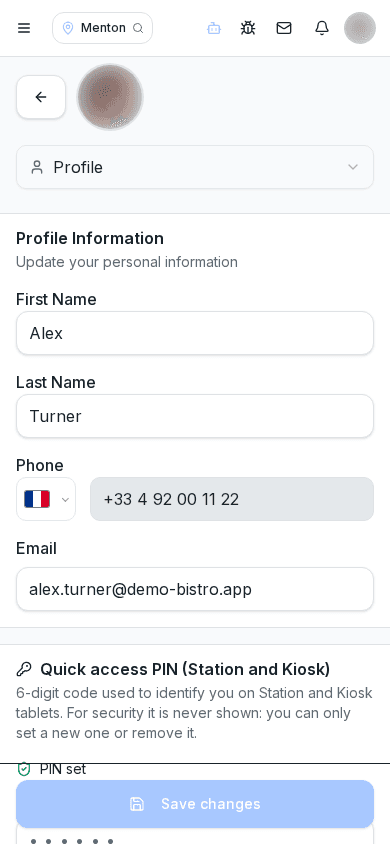
Sign in again with your email and password and set a new PIN from your profile.
Was this guide helpful?
Still need help?
Describe the issue: page, location, organisation and role are attached automatically.
Contact support