Use QR scanning and dashboard quick actions to record deliveries, losses and checks in a few seconds.
Many daily operations in KlyraOS do not require navigating through menus: the dashboard quick actions are designed to be used at the counter, in the stockroom or in front of the fridge, phone or tablet in hand.
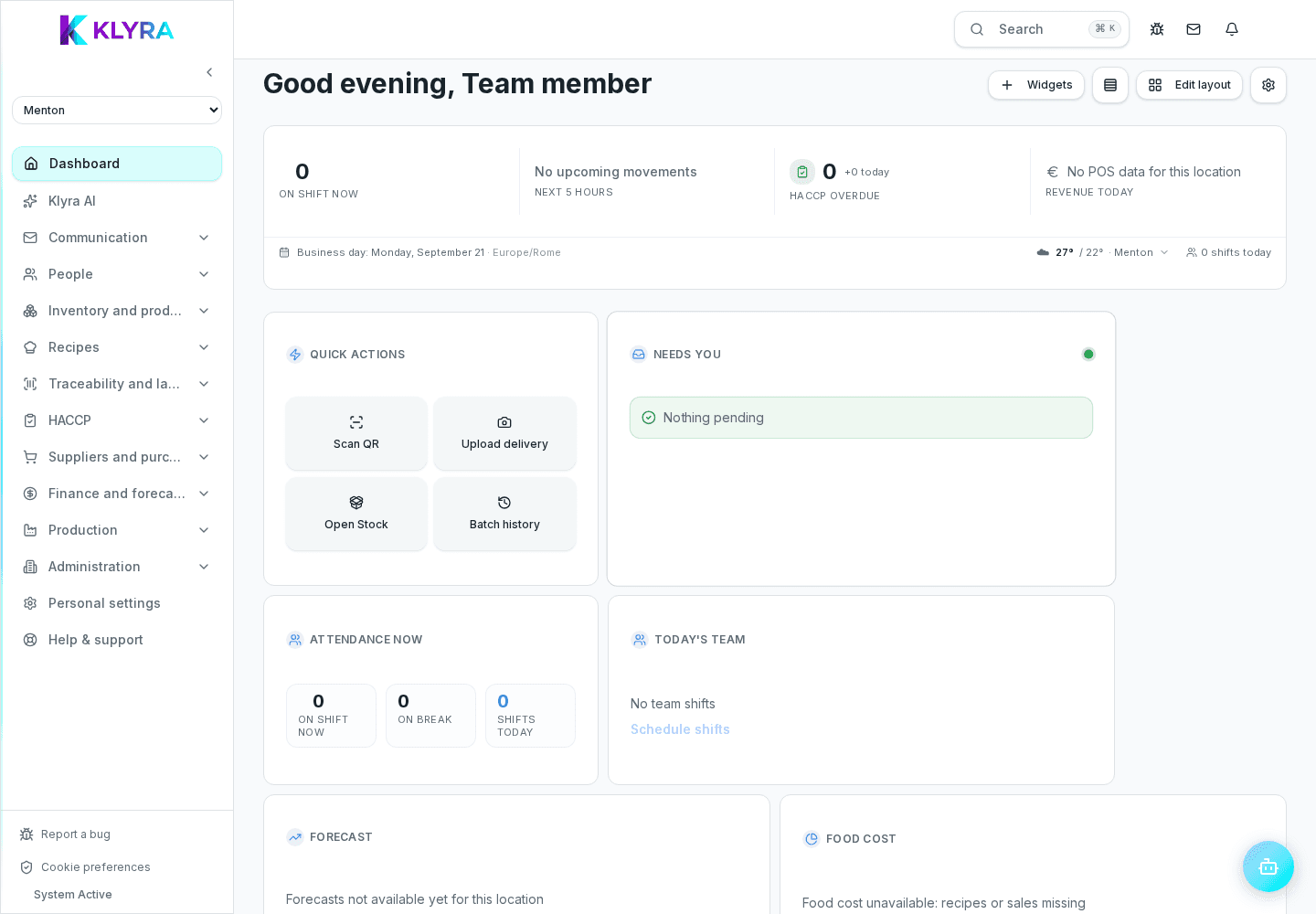
Quick actions are direct shortcuts to the most frequent operations: scanning a batch or product QR code, uploading a delivery by photographing the document, recording a loss or waste, opening a HACCP check that is due. They appear in a dedicated card and change slightly depending on your role.
QR scanning opens the device camera and automatically recognises batches, products and labels generated by KlyraOS. It is useful for quickly tracing a batch history, checking an expiry date or opening a product sheet without searching for it manually in the catalogue.
On a site tablet set up as a Station, scanning is even more direct, because the app stays open on the department’s operating screen at all times.
Instead of looking for the goods receiving section in the menus, you can start the upload directly from the quick action: photograph the delivery note or invoice and KlyraOS automatically prepares the lines to check, with quantities and prices already read from the document when possible.
When a product expires, breaks or has to be discarded, the quick action for recording a loss avoids interrupting the work in progress: select the product or scan its QR code, indicate the quantity and reason, and stock is updated immediately.
Do quick actions work offline?
QR scanning works even with a weak connection, but the final save requires synchronisation with the server.
Who can record a loss from the dashboard?
Anyone with permission to manage stock for the active site; the permission can be configured per role or per person.
Do I need KlyraOS labels printed to use the scanner?
Automatic recognition needs them, but you can still search for a product manually without a QR code.
Was this guide helpful?
Still need help?
Describe the issue: page, location, organisation and role are attached automatically.
Contact support