How to add, remove and reorder dashboard cards based on your role and job within the team.
The KlyraOS dashboard is the first screen you see every time you sign in, and it shows different cards depending on your role, your level and your job. You can still adapt it to your own habits, hiding what you never use and moving what matters most to the top.
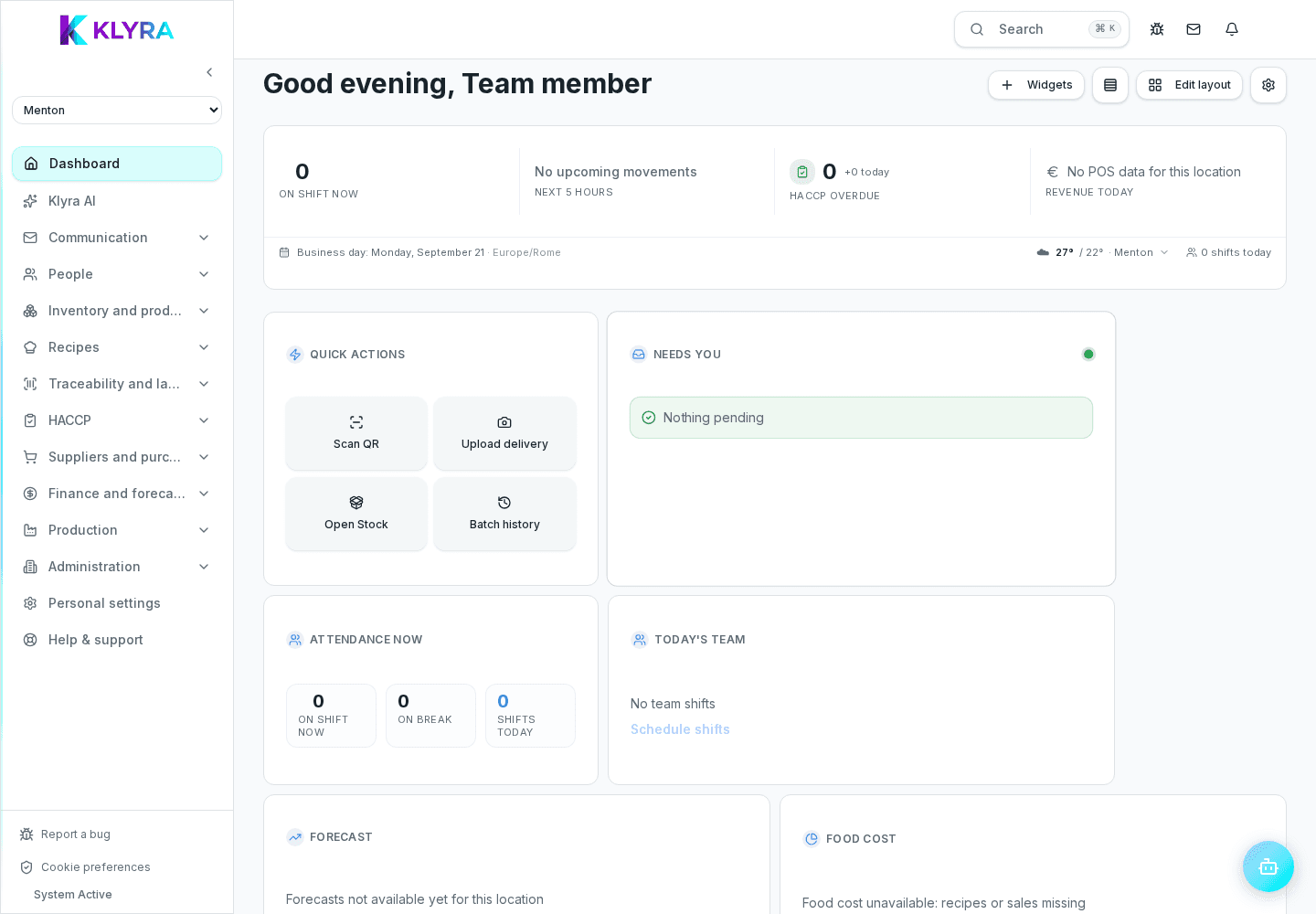
By default KlyraOS proposes the cards most useful for your job: a cook sees recipes and production highlighted, a floor manager sees shifts and communication, an administrator sees financial summaries. This starting point is only a suggestion, not a fixed configuration.
If you hold several roles, for example site manager and stock keeper, the dashboard combines the relevant cards for both functions, always within the limits of what your permissions allow you to see.
From the dashboard edit mode you can choose among every card available for your profile and activate only the ones useful for your daily work. Hiding a card does not delete the underlying data: you can always turn it back on later without losing anything.
You can drag cards to bring the ones you check most often to the top, for example upcoming HACCP deadlines or items below minimum stock. The layout you choose is saved to your account and kept even if you switch device.
If the dashboard gets messy after many changes, you can restore the recommended layout for your role in one step, without losing the historical data shown in the cards.
Why don’t I see the same cards as a colleague with the same role?
Cards also depend on the specific job and permissions assigned, not only on the general role.
Can I have different dashboards for different sites?
The card layout is tied to your account, but the data shown changes automatically based on the active site.
Do I lose historical data if I hide a card?
No, hiding a card deletes nothing: the data stays available in the dedicated sections of the app.
How do I go back to the starting configuration?
Use the recommended layout reset, available in the dashboard edit mode.
Was this guide helpful?
Still need help?
Describe the issue: page, location, organisation and role are attached automatically.
Contact support