Overview of goods receiving: photo or PDF of the document, automatic reading, line checks, batches and differences.
Goods receiving turns every delivery into a digital record linked to your stock: a photo or PDF of the delivery note or invoice is enough to update stock, prices and batches without retyping everything.
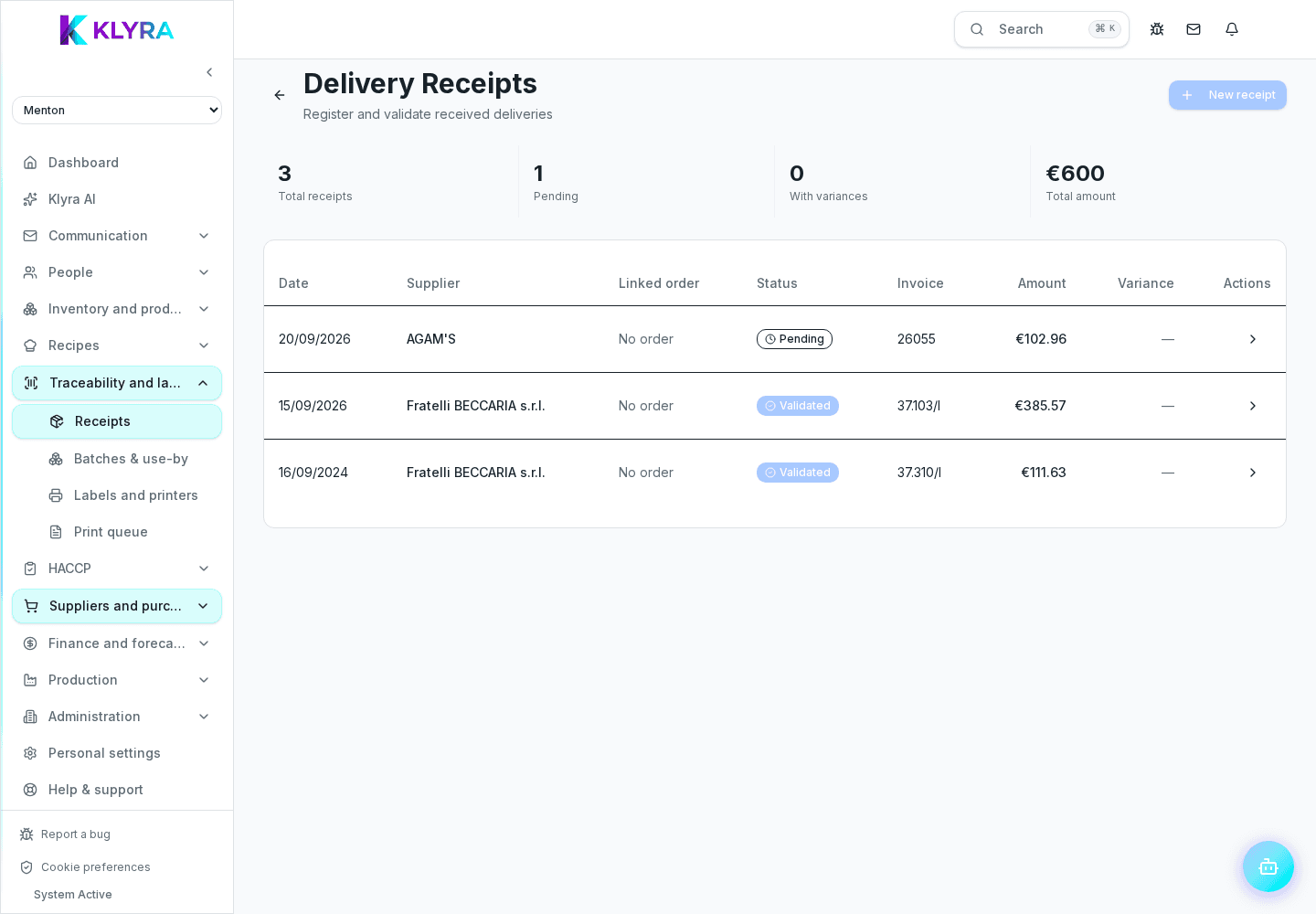
Every time a delivery arrives, receiving records what actually came in, at what price and in what quantity, compared with what was ordered. It is the step that keeps both stock and cost analysis reliable.
Warehouse or kitchen staff photograph the document as the delivery arrives. The site manager checks the trickier lines and handles differences and credit notes. The administrator controls permissions and supplier setup.
The typical flow starts with a photo or upload of the document, goes through automatic data reading, and ends with a manual check of lines, quantities and prices before confirming.
Every confirmed receiving updates stock, automatically creates batches for traceability and feeds price analysis. If the goods come from an order sent to a supplier, the receiving can be linked to the order to manage partial deliveries.
The system flags a document already uploaded to avoid double entries, and lets you cancel a receiving safely if something was entered by mistake.
Can I upload both a photo and a PDF?
Yes, you can take a photo with your phone or upload a PDF file of the document directly.
Does automatic reading replace manual checking?
No, it proposes the lines read from the document but a person must always confirm before stock is updated.
What happens if I cancel a receiving by mistake?
Cancellation is safe: it reverses the stock movements generated by that receiving.
Do I always need to enter the batch and expiry date?
No. Batch and expiry remain required where applicable; legally exempt products, such as fresh fruit and vegetables that are not cut or treated, can be marked expiry-exempt and printed without a fake date.
Was this guide helpful?
Still need help?
Describe the issue: page, location, organisation and role are attached automatically.
Contact support