How to select the site you are working on and why the active site affects every figure you see.
If you work for an organisation with several locations, the dashboard always shows data for the selected active site. Switching site is simple, but should be done with care, since each site has its own stock, its own shifts and its own HACCP checks.
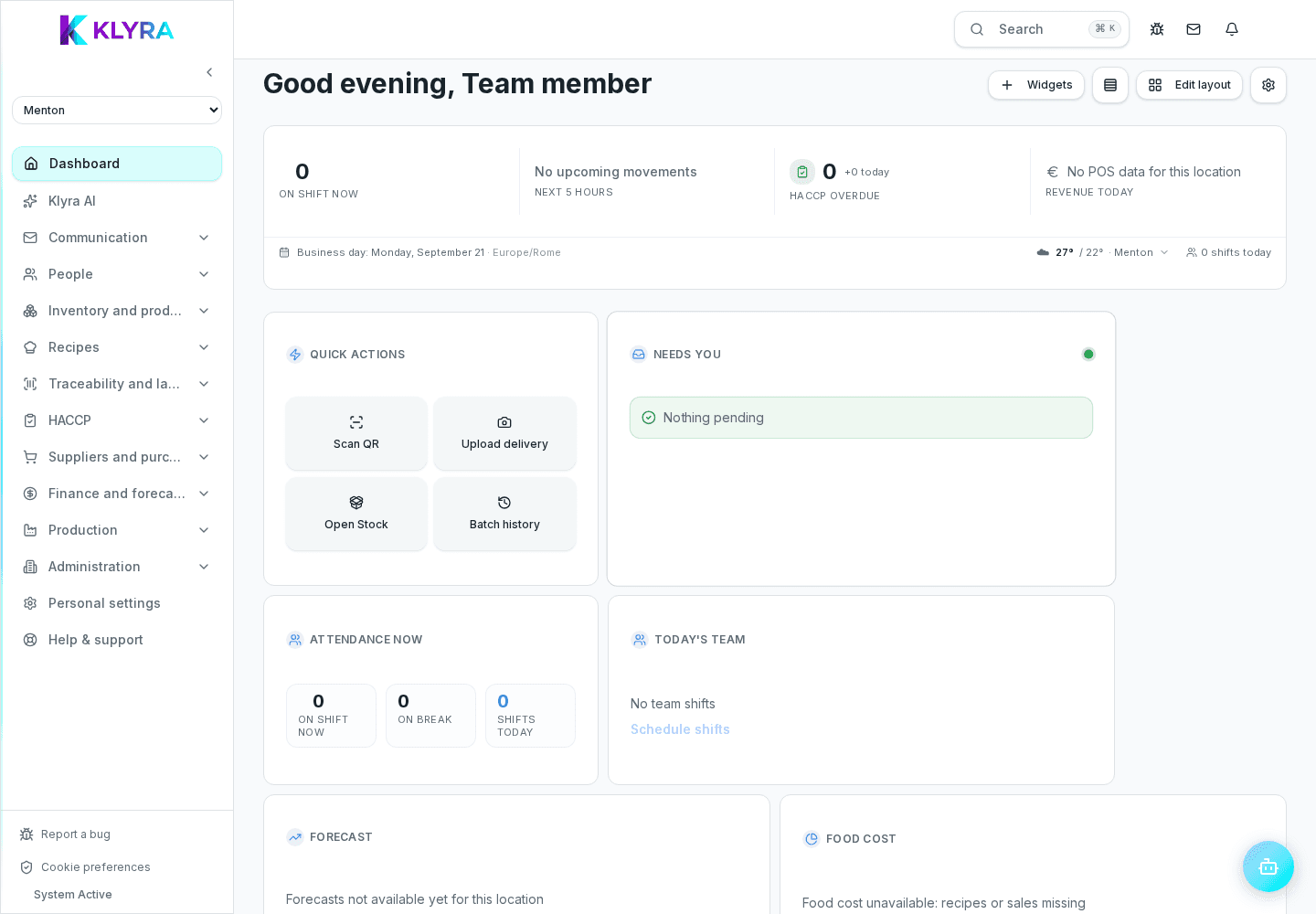
The selector is always visible at the top of the dashboard, regardless of which page you are on. It only shows the sites you actually have access to, based on the permissions assigned by your administrator.
When you switch active site, every dashboard card updates: stock levels, planned shifts, HACCP deadlines and sales summaries all refer only to the chosen site. This avoids mixing up data from different locations, for example recording a delivery in the wrong place.
Managers with visibility over several sites also find aggregated summaries in the dashboard, kept separate from the detailed view of the single active site.
Tablets set up as Station do not have a site selector: they are permanently paired to one site through a code, so whoever clocks in or works from that station cannot accidentally pick the wrong location.
Can I see two sites at the same time?
The operational dashboard always shows one site at a time; multi-site managers get separate aggregated summaries for a quick comparison.
Is switching active site visible to colleagues?
No, it is a personal choice that only affects your own working session.
What happens if I work on the wrong site by mistake?
Data entered stays on the site selected at the moment of saving: always check the selector before recording operations.
Was this guide helpful?
Still need help?
Describe the issue: page, location, organisation and role are attached automatically.
Contact support