What the colours of dashboard cards mean and how to use them to spot what needs attention right away.
The KlyraOS dashboard uses consistent colours to flag at a glance which cards need immediate attention and which show a situation under control. Learning to read them quickly helps decide where to start the working day.
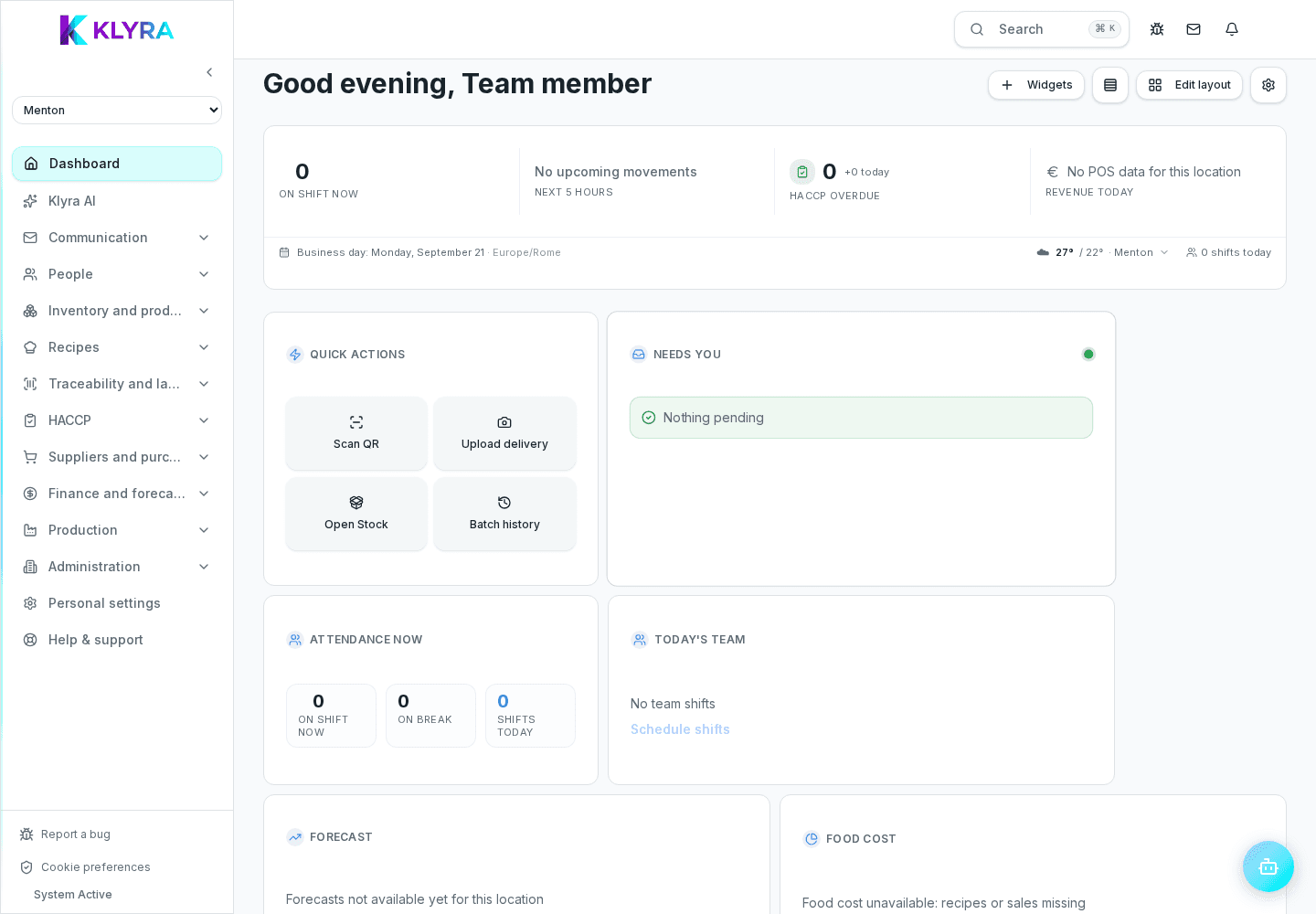
In general, green means a normal situation with nothing to do; yellow or orange flags something to check soon, such as an approaching HACCP deadline or falling stock; red indicates a problem already happening, for example an overdue HACCP check or stock that has run out.
These colours are not decorative: they come from thresholds configured for each module, such as the notice period before a deadline or the minimum stock threshold for a product.
On cards dedicated to checks and deadlines, the colour reflects how much time is left before the deadline itself: red on a temperature check means it is already overdue and must be recorded immediately to stay compliant with food safety regulations.
On stock cards the colour reflects the comparison between the available quantity and the minimum stock set for that product: a red card can indicate the need for a restock request to the usual supplier, always to be confirmed manually.
The thresholds that determine the colours can be adapted by managers to the real needs of the site: a location with daily deliveries can afford different minimum stock thresholds than one with weekly deliveries.
Are colours the same across all sites of the organisation?
The colour logic is the same, but the thresholds that determine it can be customised site by site.
Who can change the thresholds that generate the colours?
Usually site managers or administrators, depending on the permissions configured on the organisation.
Does a red card block my work?
No, it only signals a priority: you can keep working, but it is advisable to act as soon as possible.
Was this guide helpful?
Still need help?
Describe the issue: page, location, organisation and role are attached automatically.
Contact support