How to deactivate a closed or seasonal location while keeping history, recipes and documents available.
When a venue closes, is taken over, or stays shut for a long season, you don't need to delete it: you can archive it by setting it to inactive. The data stays available, but the location stops showing up among the operating ones.
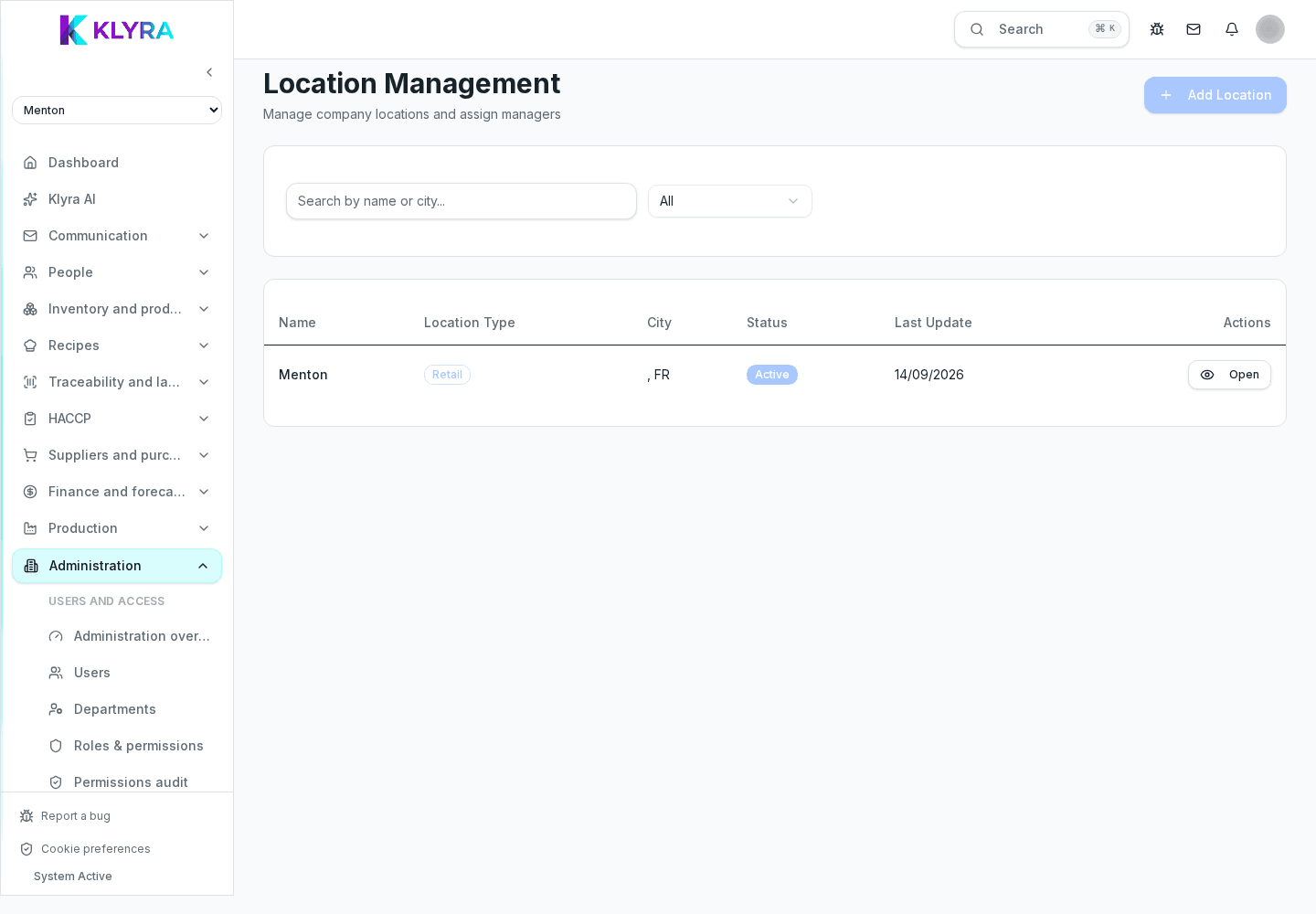
An archived location no longer appears in the location switcher for operational staff, receives no new planned shifts and drops out of current summaries, but keeps its order, delivery, HACCP check and document history.
The status sits in the location's own details, alongside its general information: you can switch between "Active" and "Archived" at any time, without deleting anything.
It's worth closing planned shifts, wrapping up any deliveries in progress and unpairing or reassigning Station devices linked to the location, to avoid lost clock-ins or checks during the closure.
For seasonal businesses, archiving and later reactivating a location when it reopens avoids recreating its records every year: linked products, recipes and suppliers stay as configured before.
Does archiving a location delete its historic data?
No, orders, deliveries, HACCP checks and documents remain available in reports even after archiving.
Can I reactivate an archived location months later?
Yes, just set the status back to "Active": the previous configuration stays intact.
Does archiving reduce subscription costs?
It depends on your plan: check the billing section for how archived locations are counted.
Do staff assigned to an archived location lose app access?
No, but they won't see that location among the selectable ones until it is reactivated.
Was this guide helpful?
Still need help?
Describe the issue: page, location, organisation and role are attached automatically.
Contact support