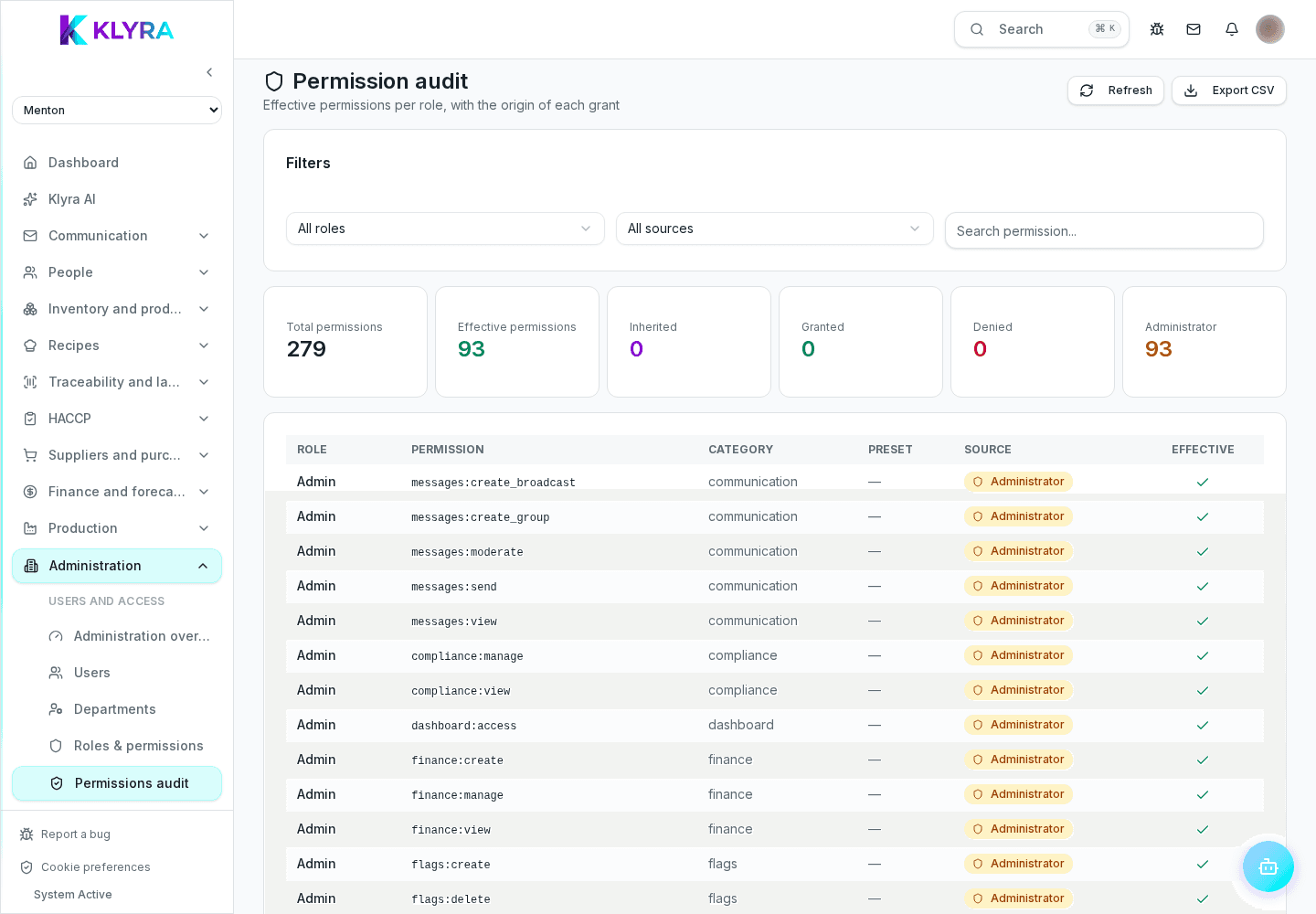
How to check the activity log, understand who did what and review permissions assigned to staff.
Every relevant operation performed in KlyraOS, from a recipe edit to a clock-in correction, leaves a trace in the activity log. Checking it regularly lets you reconstruct what happened and quickly spot unexpected access or changes.
The log shows who performed an action, when and on which object: creating or editing a recipe, correcting a clock-in, changing a permission, deleting a batch. Every entry is tied to an authenticated user, never anonymous.
Automatic actions carried out by the AI assistant are logged clearly showing that a person confirmed them, so it is always clear who authorised the final operation.
The log can be filtered by person, action type, site and date range, so you can isolate a specific event quickly instead of scrolling through months of activity. It is useful before an inspection or when a figure looks different than expected.
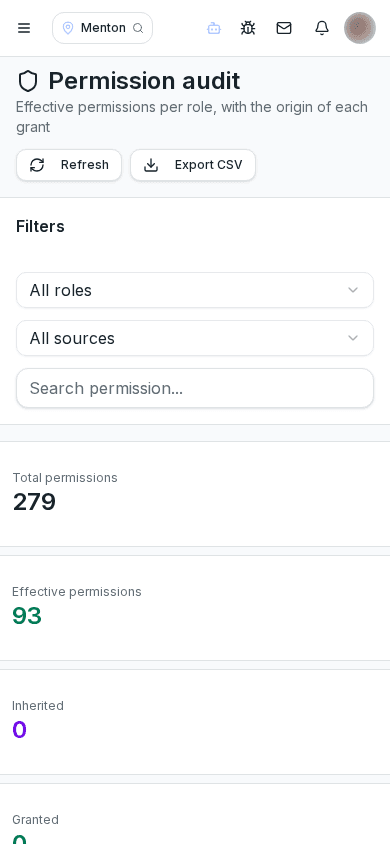
Periodically reviewing the permissions assigned to people is the main security measure available to you: an account with wider permissions than needed is the most common source of inappropriate data access.
When someone leaves the organisation or changes role, deactivating or adjusting their account right away prevents continued access to features they no longer need. Deactivation does not erase their past actions from the log.
Can the activity log be edited or deleted?
No, it is a read-only trace designed to guarantee the reliability of the information in case of an audit.
How long does the activity log stay available?
It remains accessible for the period set by your plan and by the retention obligations applicable to your sector.
Can I see actions from a single site only?
Yes, the site filter isolates actions performed at that site, excluding the others.
Was this guide helpful?
Still need help?
Describe the issue: page, location, organisation and role are attached automatically.
Contact support