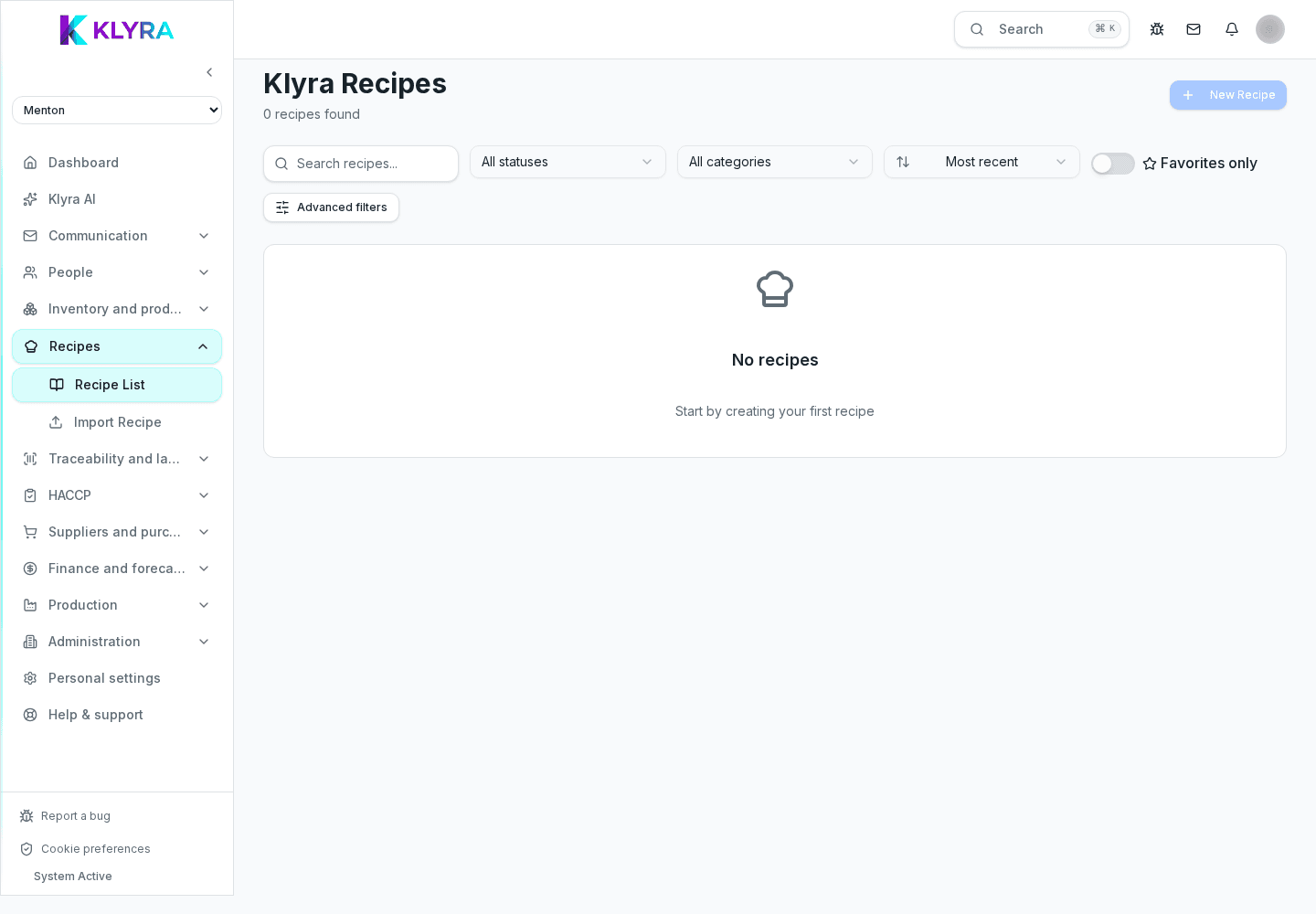
How to use full-screen cook mode to follow recipe steps, run timers, tick off ingredients and download the recipe as a PDF.
Cook mode opens the recipe full-screen, one step at a time, designed to be followed while you work: it shows ingredients, timers, checklists and lets you download the recipe as a PDF without leaving the preparation. It is not available for recipes still in draft or missing steps and ingredients.
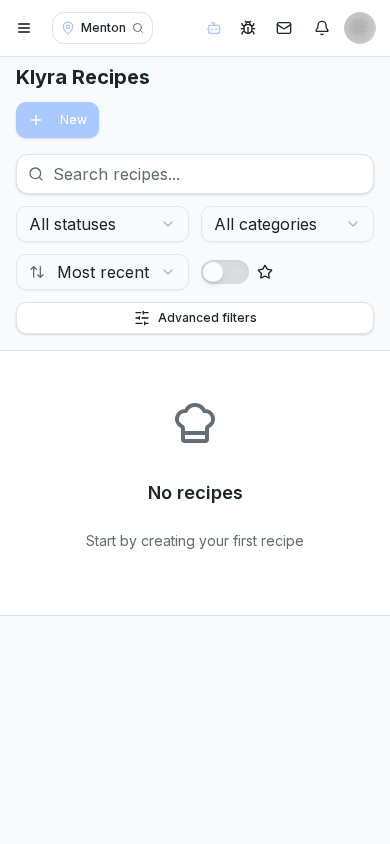
Cook mode is launched from the recipe page and requires a published recipe (not a draft) with at least one step and one ingredient. If either is missing, the app shows a message and sends you back to the recipe page.
When it opens, you're asked how many portions you're cooking for: you can confirm the recipe's standard portions or scale them. All ingredient quantities update automatically based on the scaling factor you choose.
Each step shows a title, instruction, optional photo, and any linked timer or checklist. You move forward and back with the Next/Previous buttons, the keyboard arrows, or by swiping on a touchscreen.
Ingredients for the step can be ticked off as they're weighed or used; the ticked state is saved in the browser session, so an interrupted preparation can be resumed. If the stock available in the warehouse is lower than the quantity needed, the ingredient flags the missing quantity.
If a step has a set time, a dedicated timer appears with a countdown, start, pause and reset controls: it plays a sound and shows a notification when it finishes. The timer automatically resets when you move to another step.
From the cook mode menu you can download the recipe as a PDF formatted for the work station, using the current portions: handy for a paper copy or for viewing on another device.
On the last step, if the recipe is linked to a location, a button appears to declare the preparation: it opens a dialog to log the produced batch and print the label, automatically deducting the ingredients from stock.
Can I use cook mode on a draft recipe?
No, cook mode requires a published recipe with at least one step and one ingredient; drafts show a message pointing back to the recipe page.
What happens if I switch devices halfway through cooking?
The ticked ingredient state is saved in the browser of the device used, so it doesn't carry over to another device automatically; on a different screen the preparation starts from scratch.
Does the timer keep ringing if I change step?
No, moving to another step resets the previous step's timer; each step has its own independent timer.
Can I download the PDF with portions different from the standard ones?
Yes, the PDF downloaded from cook mode uses the current portions set at the start of the preparation.
What does the 'declare preparation' button do?
It opens the batch logging dialog, automatically deducts the ingredients used from stock, and offers to print the label with production date and expiry.
Can I go back to the recipe page without losing my progress?
Yes, closing cook mode returns you to the recipe page; the checklist state stays saved in the session until you reset it or fully close the browser.
Was this guide helpful?
Still need help?
Describe the issue: page, location, organisation and role are attached automatically.
Contact support