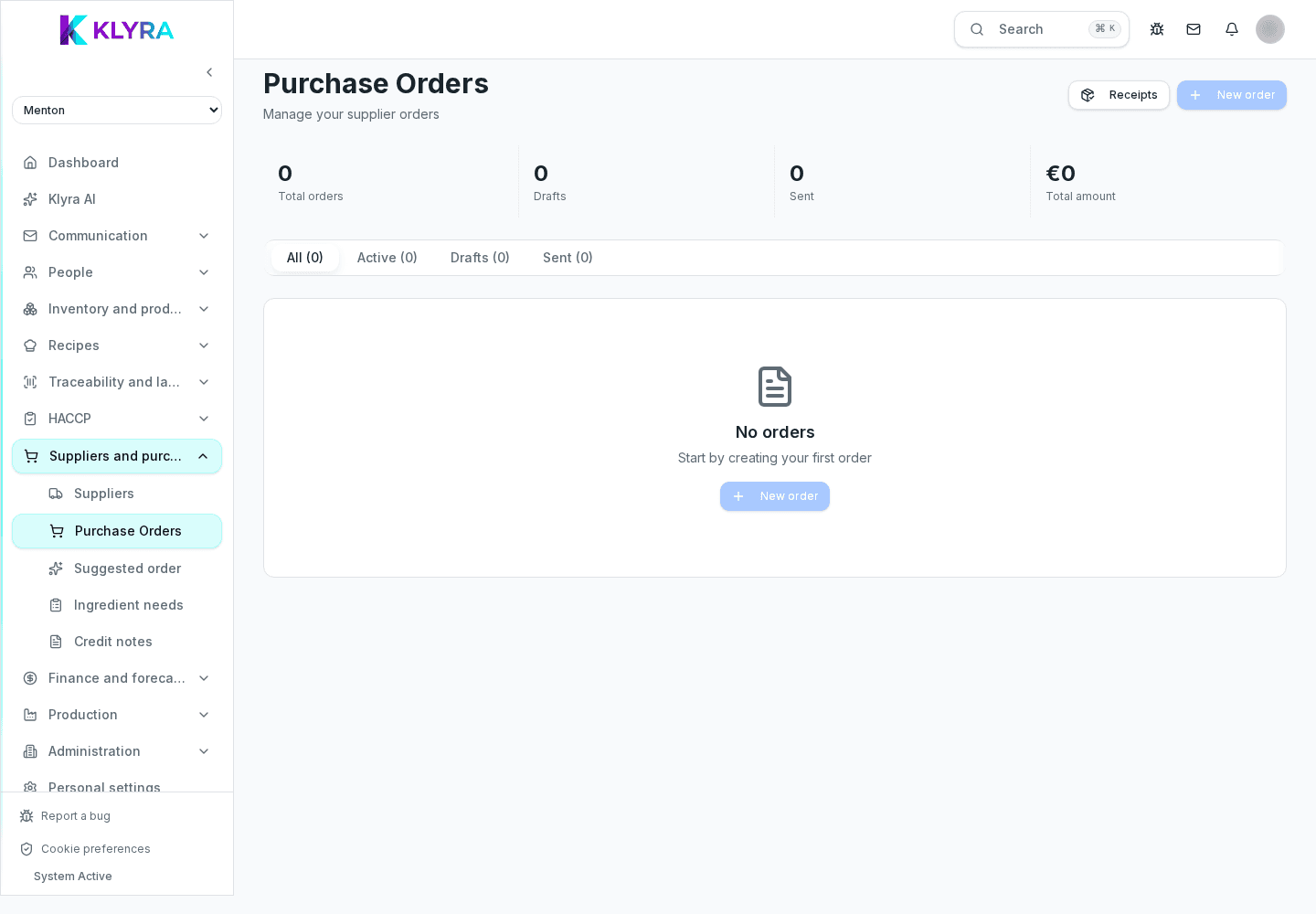
From confirmed request to sent order: lines, terms and tracking the supplier confirmation status.
Once a restock request is confirmed, the order is ready to be reviewed in detail and sent to the supplier. You can also create an order manually, without starting from a suggestion, whenever you need a one-off purchase.
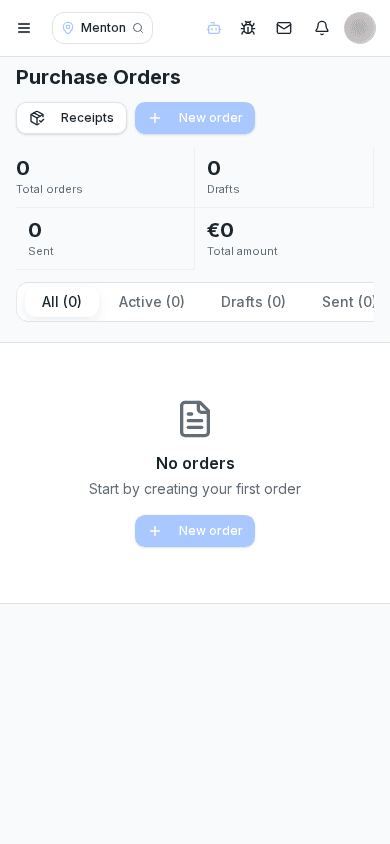
An order can come from a confirmed restock request or be created from scratch by choosing products and quantities directly. Either way, you can edit lines, quantities and expected delivery date before sending it.
If products come from several suppliers, KlyraOS automatically splits the lines into separate orders, one per supplier.
Sending happens through the channel configured for the supplier, typically email with the document attached. The order stays visible with an updated status: draft, sent, confirmed by the supplier, or delivered.
Nothing goes out unless you press the send button: the same logic applies as for restock requests, so a person always stays in control.
If the supplier reports a change, you can update the order lines and mark it as amended, keeping the history of previous versions for clarity in case of disputes.
When the goods arrive, receiving can be linked to the original order: this speeds up the check because KlyraOS automatically compares ordered quantities and prices with what was received.
Can I create an order without going through the suggested restocking?
Yes, you can create a manual order by choosing products and quantities directly, useful for occasional purchases.
How do I know if the supplier has seen the order?
The order status shows whether it was sent, confirmed or delivered, based on recorded updates.
Can I cancel an order after sending it?
Yes, you can cancel or edit it if the supplier has not yet fulfilled the delivery; the action stays tracked in history.
Was this guide helpful?
Still need help?
Describe the issue: page, location, organisation and role are attached automatically.
Contact support