Customizable tiles, quick actions and QR scanning: the complete guide to KlyraOS's home screen and the status colors you need to know.
The dashboard is the first screen you see every time you log in: it shows the tiles most useful for your role, from HACCP deadlines to your weekly shifts. You can customize it, add quick actions and instantly spot what needs attention thanks to status colors.
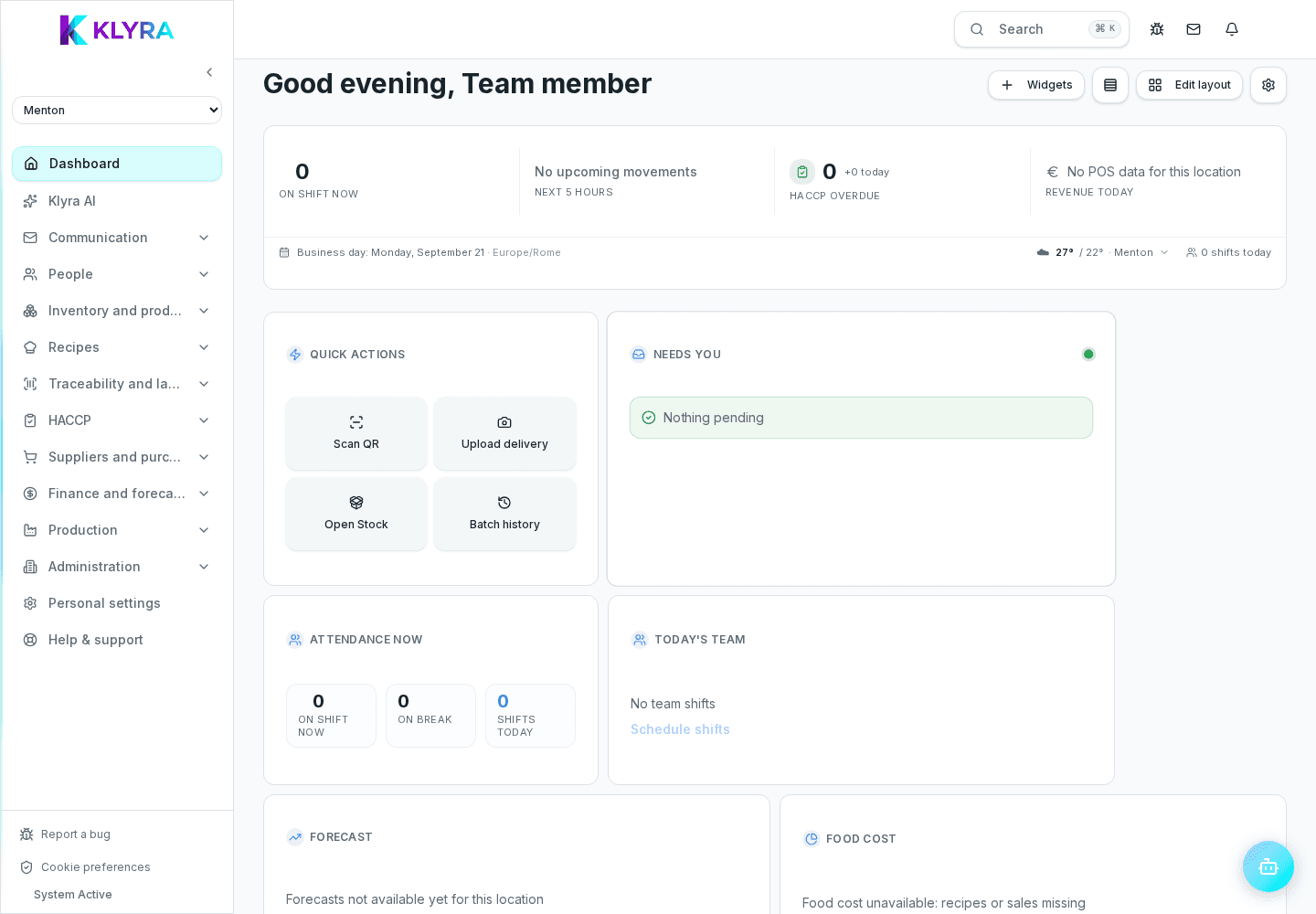
Visible tiles depend on your role, permissions and job function: whoever manages HACCP sees deadlines and checks, whoever handles shifts sees their weekly schedule and pending approvals. The system proposes a sensible starting set, but it remains editable.
You can add, remove and reorder tiles to fit your daily needs. Preferences are saved per user, so you find the same layout every time you log in.
From the dashboard you can quickly launch the most frequent operations: scan a batch or label QR code, upload a goods receipt with a photo or PDF, log an inventory loss. These are shortcuts to the same features available in the dedicated modules.
If you have access to multiple locations, the selector at the top lets you change which location you're working on: the tiles, inventory data and shifts shown update accordingly.
Tiles use colors to flag urgency: green means everything is regular, yellow means upcoming tasks to plan, red means overdue deadlines or missing checks that need immediate attention.
Are dashboard tiles the same for everyone?
No, they depend on role, job function and permissions: two colleagues may see different sets of tiles.
Can I reset the initial tile layout?
Yes, from dashboard settings you can return to the recommended layout at any time.
What happens when I scan a QR code from the dashboard?
KlyraOS recognizes the code type (batch, label) and takes you straight to the matching record.
Why don't I see the shortcut to log a goods receipt?
You need the specific goods-receiving permission: check with whoever manages users and permissions.
Do status colors mean something serious?
Red flags something needing attention, but not always a critical emergency: check the tile's detail before worrying.
Was this guide helpful?
Still need help?
Describe the issue: page, location, organisation and role are attached automatically.
Contact support