The difference between the Station PIN and your account password: how to set them, change them and what to do if you lose them.
PIN and password do different jobs but are often mixed up: the password unlocks your account on the website and app, while the six-digit PIN is only for on-site fixed stations. This guide sums up where to set them, who can reset them and what to do if something goes wrong.
The PIN is a personal six-digit code used only on Station for quick access: clocking in, opening recipes or logging HACCP checks on the venue’s fixed devices. It does not work to sign in to the website or the phone app — that always requires your account password.
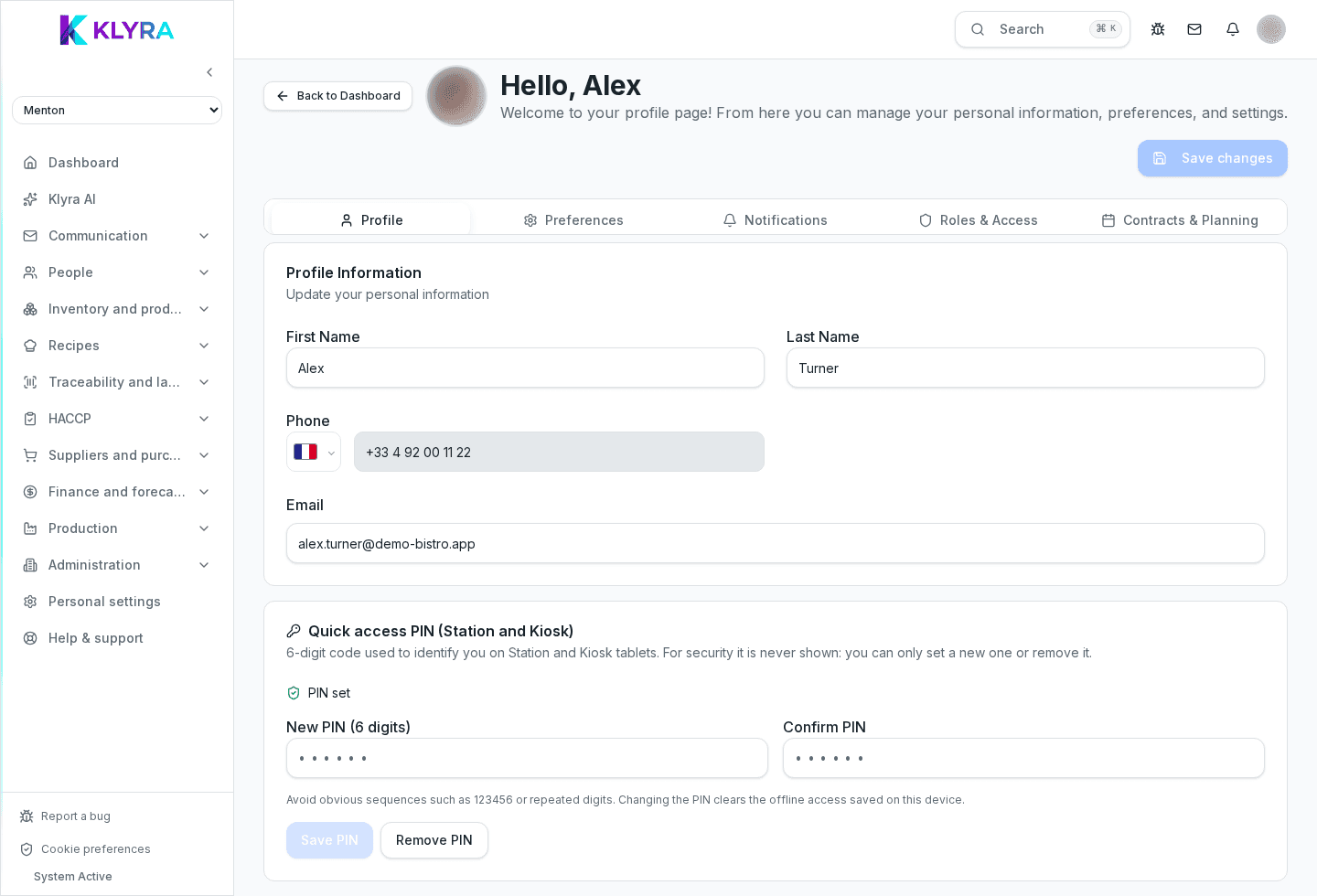
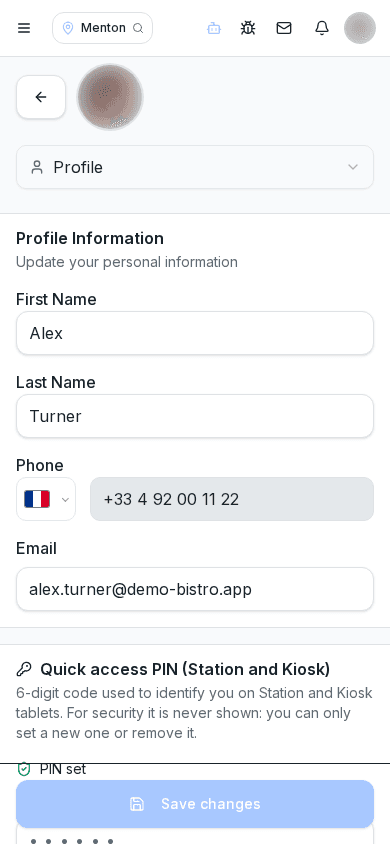
In your profile you’ll find the "Quick access PIN (Station)" box. Enter your new six-digit PIN in "New PIN (6 digits)", repeat it in "Confirm PIN" and press "Save PIN". If you no longer want quick access, you can remove it with "Remove PIN": from that point on, Station will require another sign-in method until you set a new PIN.
You can always change it yourself from your profile. If you can’t access it, a manager or administrator can set you a new PIN directly from Station, so you can get back to work without waiting to regain access to the website.
You change the password from your profile, in the account security section, or from the sign-in screen using the "forgot password" link, which sends an email with instructions. If you can’t change it yourself, an administrator can reset it for you from your profile in Users and permissions.
Password reset messages and any new invites always go to the email address on your profile: if you no longer have access to that inbox, you won’t be able to complete recovery on your own. In that case, tell an administrator, who can fix the address on your record and reset your password directly from the users section.
Are the PIN and the password the same thing?
No: the password unlocks your account on the website and app, the six-digit PIN is only for quick access on Station.
Can I use the PIN to sign in to the app on my phone?
No, the PIN only works on Station devices paired to a location, not on the personal app or the website.
Who can reset my PIN if I forget it?
You can reset it yourself from your profile; if you can’t access it, a manager or administrator can do it directly from Station.
What if I’ve also lost access to my email?
Contact an administrator: they can fix the email address on your record and reset your password from the users section.
Was this guide helpful?
Still need help?
Describe the issue: page, location, organisation and role are attached automatically.
Contact support