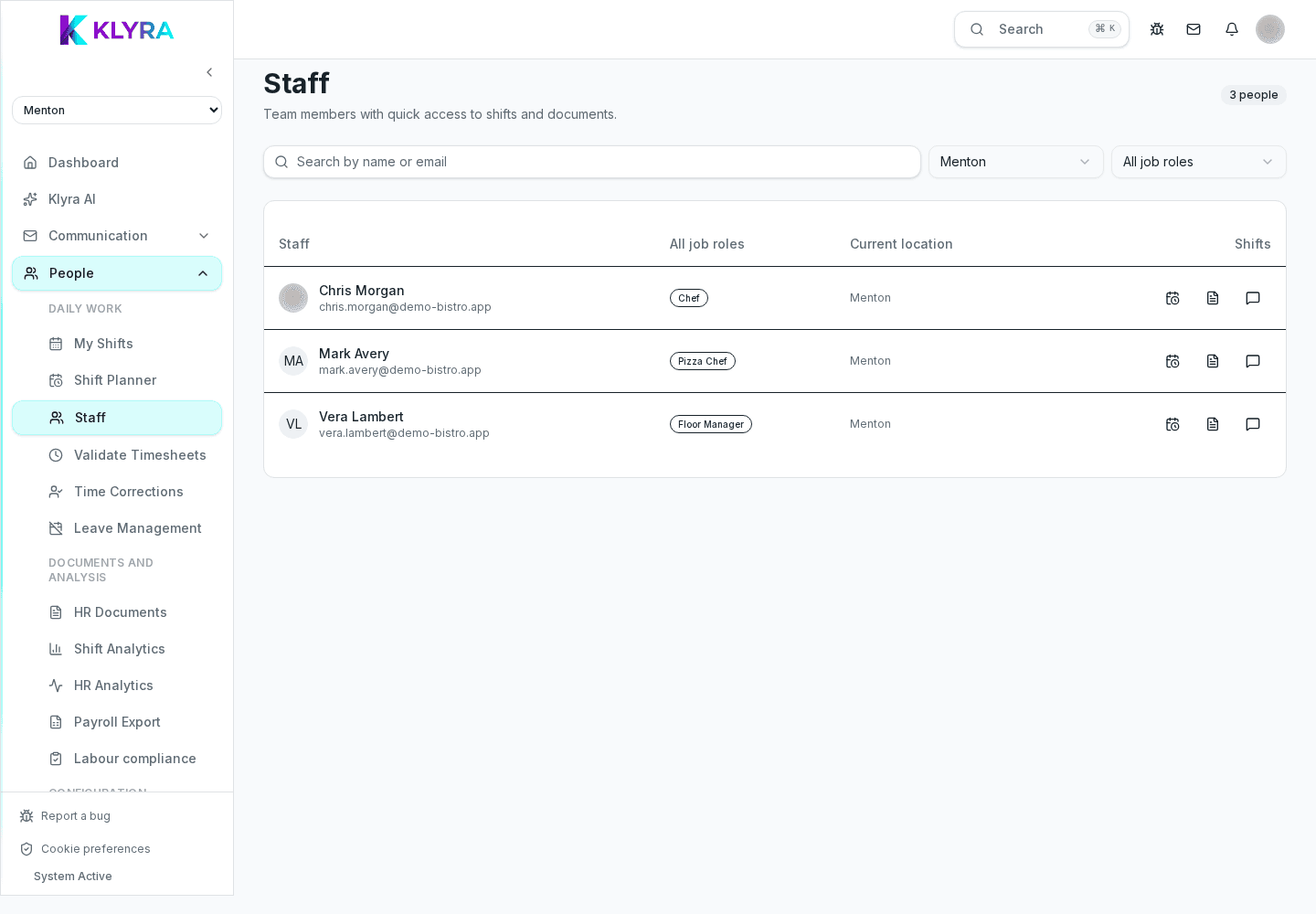
How to create and keep every employee file up to date: personal data, role, site and linked documents.
The employee file brings together every useful piece of information about a person: personal data, role, site, position and hire date. It is the starting point for contracts, shifts, clocking and payroll, so keeping it current avoids downstream issues.
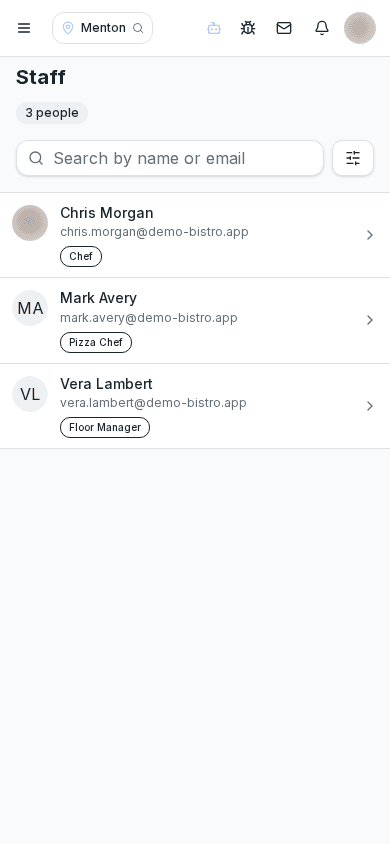
The file gathers personal data, contact details, assigned role, position, work sites and hire date. From here you can also quickly reach contracts, documents and the change history.
You can create a file manually or from an accepted invitation: in that case basic data is already pre-filled and only the contract details remain to be completed.
Every change in role, site or position must be recorded immediately: the file feeds shift scheduling and labour cost reports, so outdated data produces wrong shifts or calculations.
When a relationship ends, deactivate the person instead of deleting them: shift, clocking and document history is kept for possible checks, but they lose app access.
How do I change the site of an employee who is transferring?
Open their file, remove the previous site (or keep it if they work across sites) and add the new one: future shifts will be proposed on the updated site.
What happens if I deactivate someone by mistake?
You can reactivate them from the same file: data, history and documents remain intact because deactivation never deletes anything.
Who can see personal data in the file?
Only people with HR management permission for that site; the rest of the staff cannot access this information.
Was this guide helpful?
Still need help?
Describe the issue: page, location, organisation and role are attached automatically.
Contact support