How shift planning works in KlyraOS: weekly planner, availability, leave, labour compliance and publishing shifts.
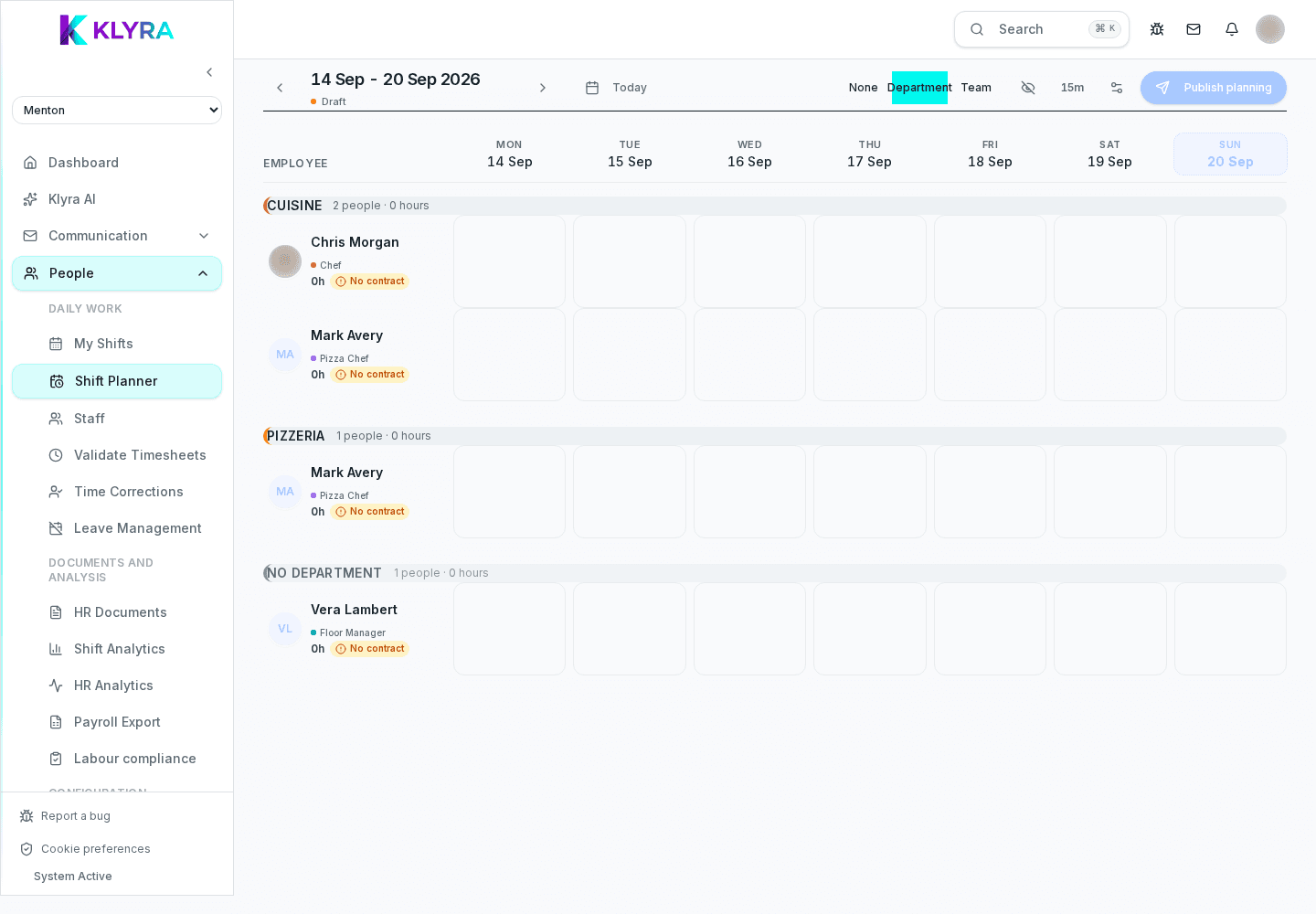
The Shifts area brings together everything you need to build your site's schedule, from a single shift to a full week. From here you manage availability, absences, compliance warnings and publishing to staff.
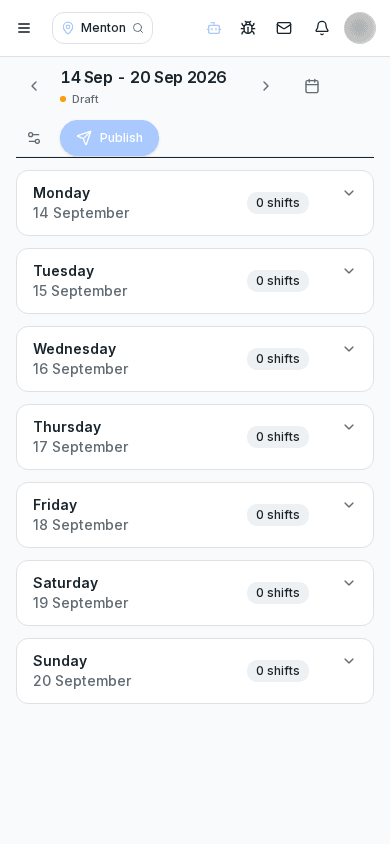
The planner shows the week with a per-person or per-role view, so you immediately see where coverage is missing before assigning shifts.
You can create single or recurring shifts, duplicate the previous week and manage split shifts for typical double services in restaurants.
Staff declare their weekly availability from their personal app; the planner uses it to suggest compatible assignments and avoid conflicts.
Leave, permits and other absences are recorded in the same area and are automatically considered when you assign a shift.
KlyraOS automatically flags the most common compliance issues, such as missed minimum rest or overtime past a threshold, without blocking shift creation: the final decision stays with the manager.
Until a week is published, staff cannot see assigned shifts. Publishing sends notifications to everyone involved.
Where does a person clock in for an assigned shift?
Not from the planner: clocking happens only on Station on site, never from the personal app.
Can I plan several sites at once?
Yes, if you have permissions on several sites you can switch between them or use the multi-site view to check conflicts.
Who can create and assign shifts?
People with the 'shifts:manage' permission, typically site managers and HR.
What happens if I ignore a compliance warning?
The shift is still created, but the warning stays visible: the manager who confirmed is responsible for the choice.
Do absences automatically block an assignment?
No, they raise a conflict warning but the final confirmation is up to the person assigning the shift.
Was this guide helpful?
Still need help?
Describe the issue: page, location, organisation and role are attached automatically.
Contact support