How to read the Brother print queue status, recognise the most common errors and reprint without duplicating data.
Every print request goes through a queue that shows the status in real time: pending, sent, printed or in error. Understanding how to read this queue lets you fix printing issues within seconds without stopping kitchen work.
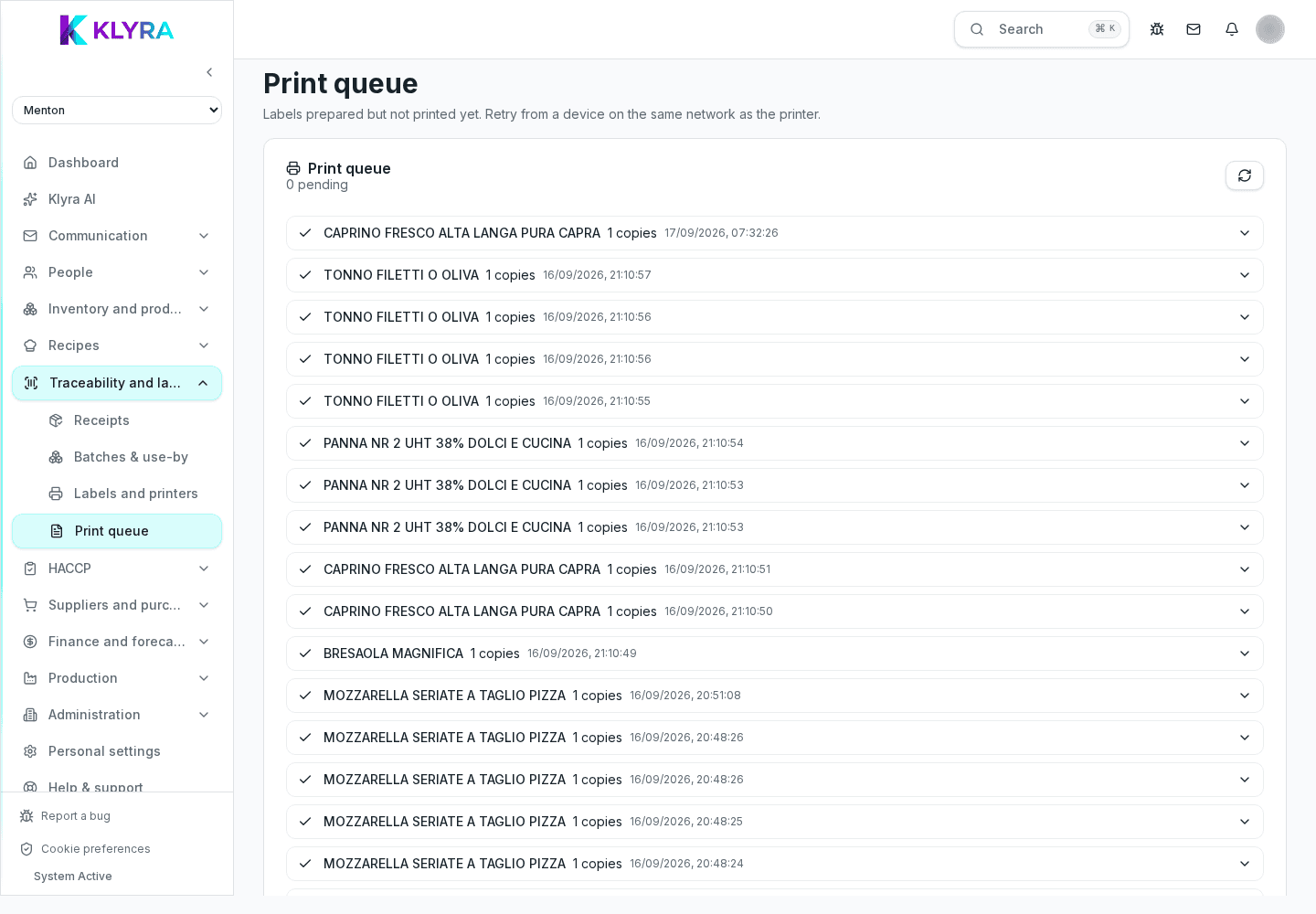
Every submitted label goes through "pending", "sent to printer" and "printed" statuses. An "error" status means the printer rejected or failed to complete the print job, and must be handled before sending further requests to the same printer.
Most errors relate to the printer connection, an empty roll or an overheated head after intensive use. The queue flags the error type next to the affected request, so you immediately know whether to act on the printer or the device.
Reprinting a label from the queue creates no new batch and does not alter traceability data: it simply resends the same content to the printer. This makes it safe even when the issue was just a roll jam.
If several requests stay stuck at the same time, the issue is almost always the physical printer: unplugged cable, empty roll or a powered-off device. Once the physical issue is fixed, the queue automatically resumes processing pending requests.
Does reprinting create a new batch?
No, reprinting reuses the same data and generates no new traceability movement.
Why does a request stay "pending" for a long time?
Usually because the paired printer is offline: check the physical connection before checking anything else.
Can I reprint several failed labels at once?
Yes, you can select several failed requests and reprint them together once the printer issue is fixed.
Does the print queue record who printed each label?
Yes, every request shows who generated it and when, useful for internal traceability.
Was this guide helpful?
Still need help?
Describe the issue: page, location, organisation and role are attached automatically.
Contact support