How to create a production order, assign it to a station and link it to the right recipe.
A production order links a recipe to a quantity to prepare, a date and a station. It lets you plan kitchen or lab work and keep track of what was produced, when and by whom. Without orders, production stays an informal activity that is hard to control and cost.
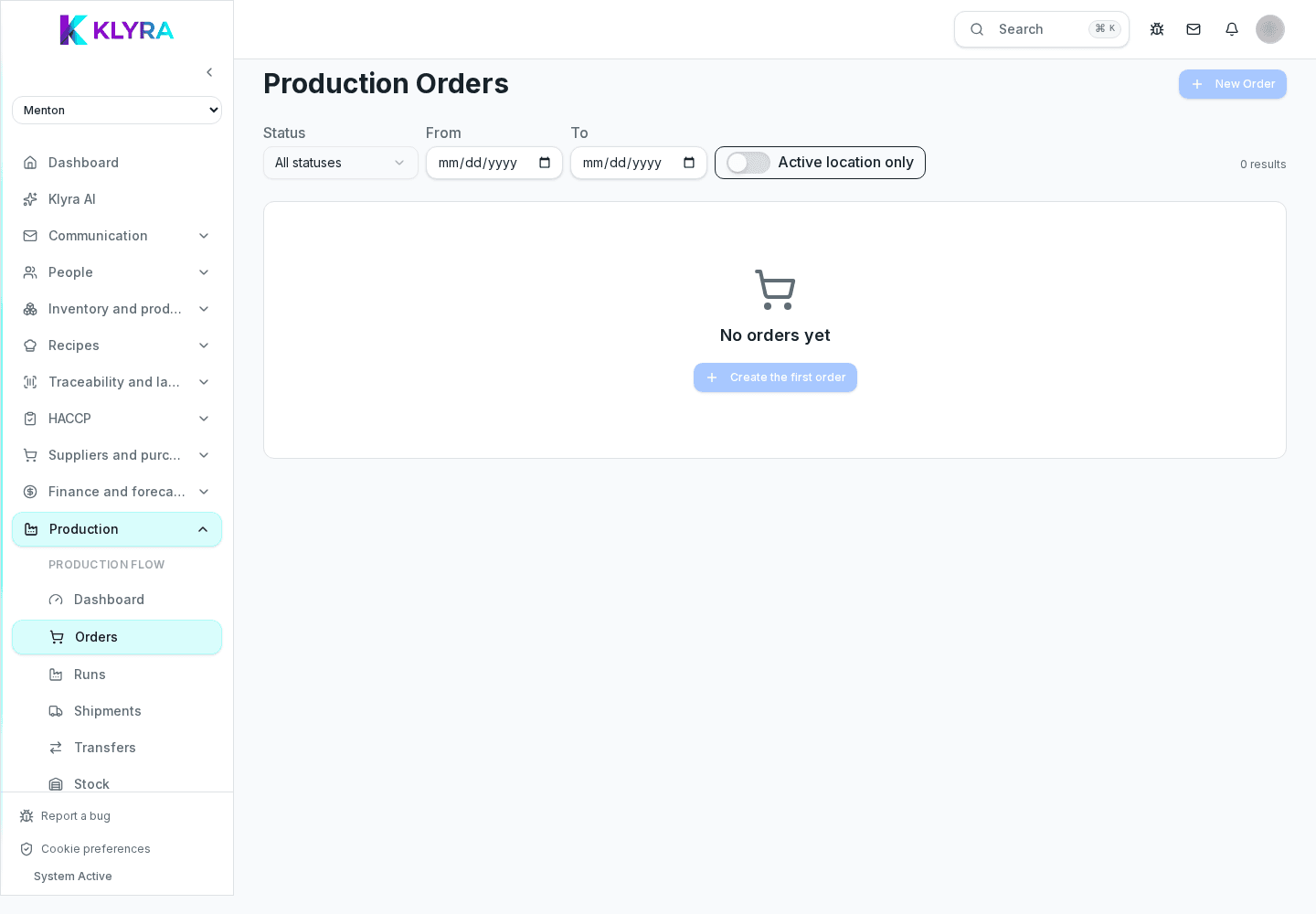
Every order references an existing recipe or sub-recipe and states the requested quantity, in portions or weight. It also carries the expected delivery date, the responsible station and, when needed, a priority to separate urgent work from routine work.
The order also shows the raw material requirement calculated automatically from the recipe, so you can check in advance whether the stock on hand is enough before starting the run.
Orders can be created one by one or generated in bulk from a weekly plan, useful for recurring preparations like bases, sauces or doughs. This lets the department lead see the workload for the coming days and balance stations.
When an order depends on another one, for example a sauce used as an ingredient of a finished dish, it is best to schedule them in sequence to avoid dead time in the kitchen.
Every order can be assigned to a work station or a specific person, so it shows up on their task list for the day. This avoids forgotten orders and makes clear who must complete what and by when.
Once confirmed, KlyraOS virtually reserves the raw materials needed so they are not missing for other runs planned on the same day. When production is completed, the run generates outgoing batches linked to HACCP traceability.
Can I create a production order without a saved recipe?
No, the order always requires an existing recipe or sub-recipe: that is what enables automatic requirement and cost calculation.
How do I handle recurring preparations like brown stock?
You can create a recurring production template and generate orders automatically every week, only changing the quantity when needed.
What happens if raw material is missing to complete the order?
The order flags the shortfall: you can reduce the quantity, delay production or raise a restock request to the supplier.
Can I link a production order to a customer order?
Yes, in the shipments section you can link the production order to a delivery to another outlet or external customer.
Was this guide helpful?
Still need help?
Describe the issue: page, location, organisation and role are attached automatically.
Contact support