How to create a recipe draft by importing a document or photo, and how to request to collaborate on a recipe from another location.
KlyraOS lets you create a recipe draft starting from an existing document, photo or PDF instead of typing everything from scratch, and lets you collaborate on recipes created at another location in the same organization through a request approved by the recipe's owner.
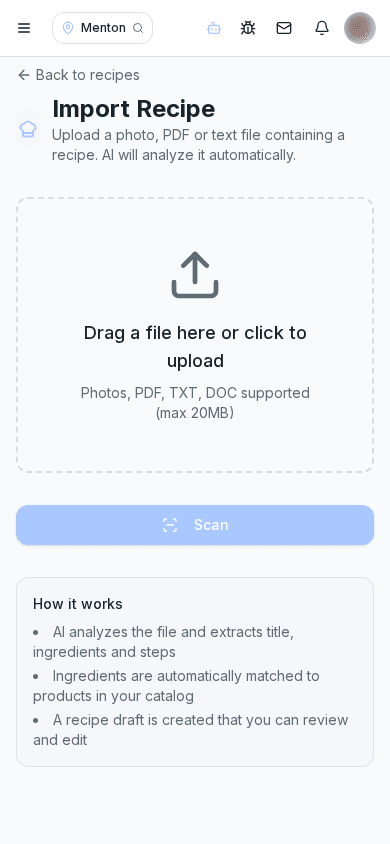
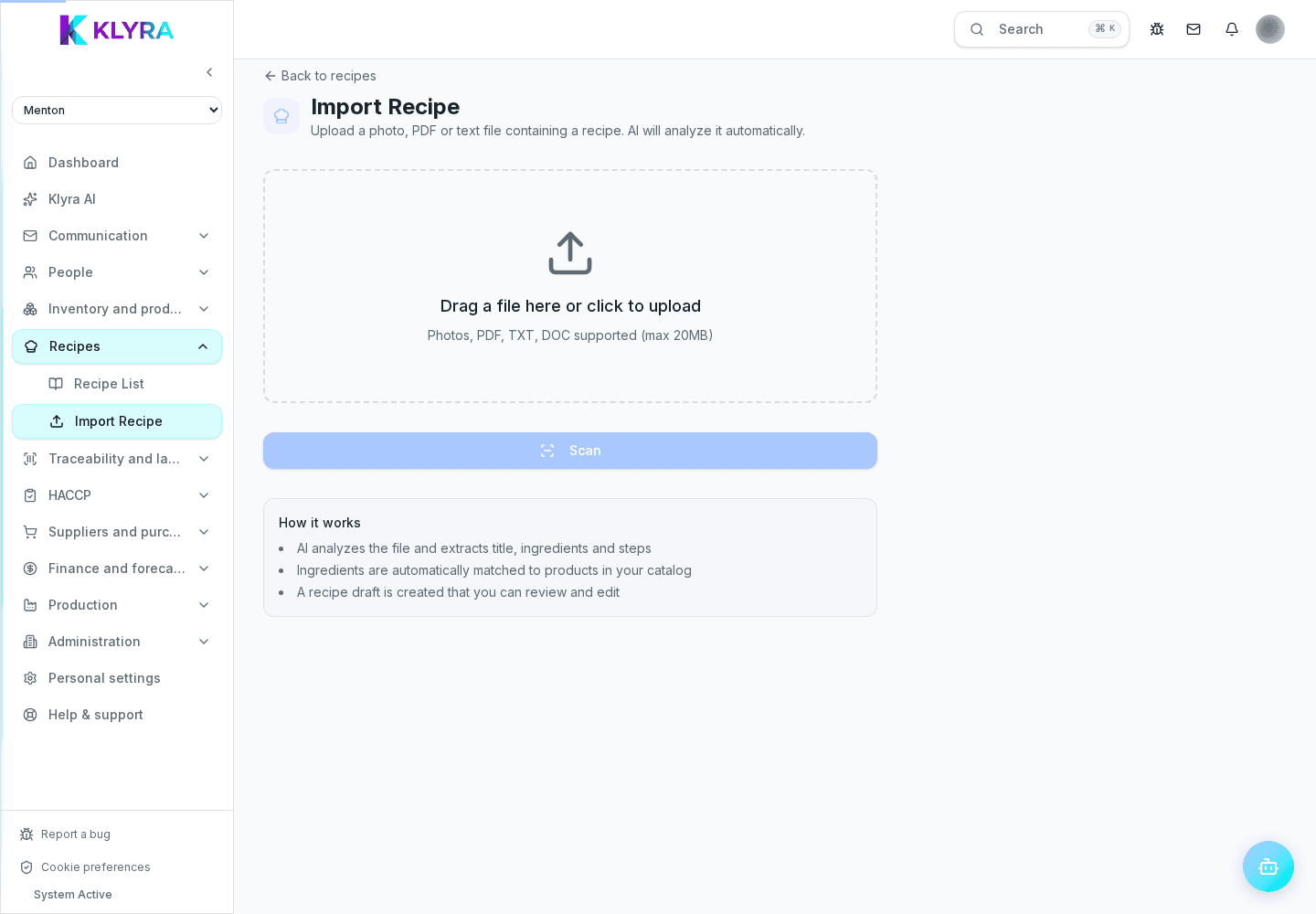
From the recipe import page you can upload a file by dragging it or selecting it, or take photos live with the built-in scanner. Accepted formats are images (JPEG, PNG, WEBP, HEIC), PDF, text files and Word documents, up to 20 MB per file.
The document is analyzed to recognize the title, ingredients and preparation steps; the system then tries to match each recognized ingredient to an existing product in the warehouse catalog. The result is always saved as a draft recipe, never published automatically.
After importing you're taken directly to the new recipe's page: it's essential to check that ingredients, quantities and steps are correct and that the catalog matches are right before publishing it.
A draft recipe created at another location in the same organization can be completed together: anyone who isn't the creator or already a collaborator can send a collaboration request with a message, which the recipe's owner can approve or reject.
Whoever manages the recipe sees the list of received requests with the requester's name, message and date. From there they can approve it, making the requester a collaborator on the recipe, or reject it.
Whoever sent a request sees whether it's still pending or already approved, and cannot send a second one until the first is handled or once they've already become a collaborator.
Does importing publish the recipe right away?
No, an imported document always creates a recipe in draft status: it must be checked and published manually after review.
Which file formats can I import?
JPEG, PNG, WEBP and HEIC images, PDF, text files and Word documents, up to 20 MB per file.
Can I photograph a handwritten recipe instead of uploading a file?
Yes, the import page includes a live scanner to capture pages directly from the camera.
Who can request to collaborate on a recipe?
Anyone who sees a draft recipe from another location, as long as they aren't already its creator or an approved collaborator.
What happens once my collaboration request is approved?
You become a collaborator on the recipe and can help complete it together with the team that created it.
Can I send several collaboration requests on the same recipe?
No, if you already have a pending request or are already a collaborator you cannot send another one on the same recipe.
Was this guide helpful?
Still need help?
Describe the issue: page, location, organisation and role are attached automatically.
Contact support