Build the weekly schedule, assign shifts to the right people and manage swaps quickly and safely.
KlyraOS’s planner lets you build the working week starting from the roles needed in each time slot. You can copy previous weeks, create recurring shifts, and assign people while considering their contract and declared availability.
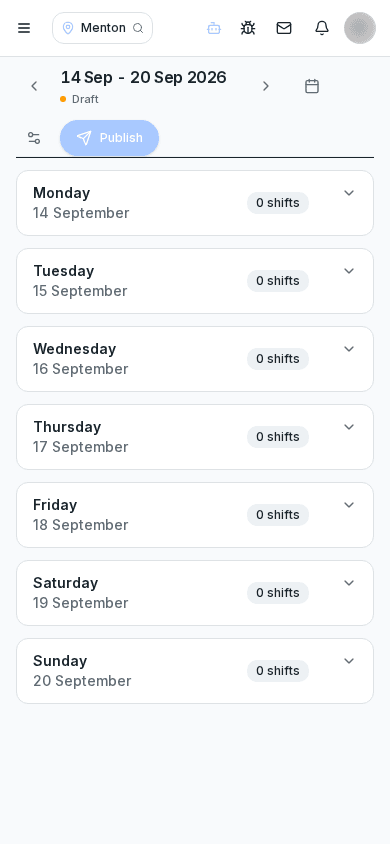
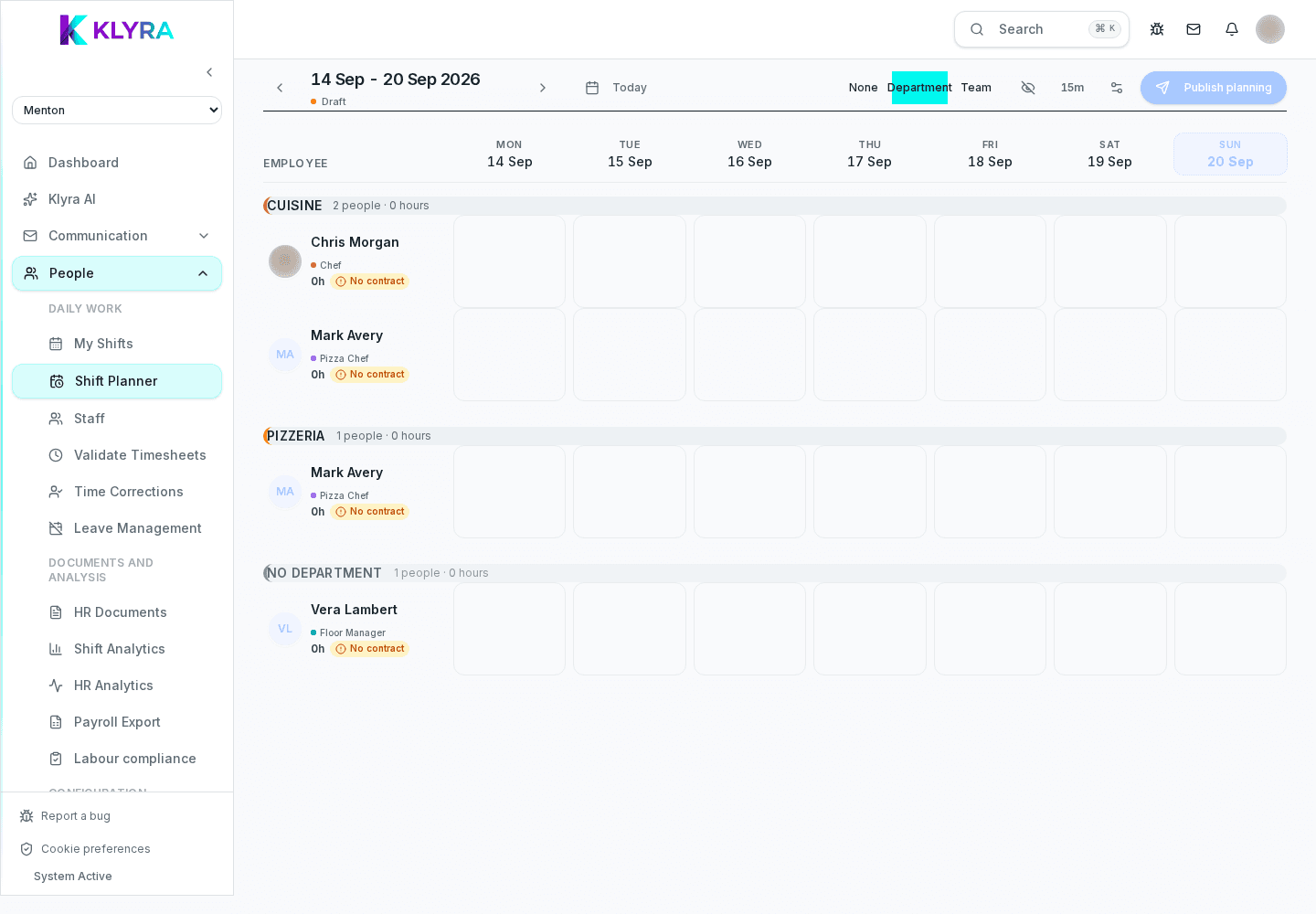
The planner shows a grid with days of the week as columns and people or roles as rows, depending on the chosen view. Switching between the per-person and per-role view instantly shows where coverage is missing.
For each shift you set start and end time, role, location and, if needed, an internal note. Shifts can be split to handle the double services typical of the restaurant business.
KlyraOS automatically flags the most common conflicts: overlap with another shift, an approved absence on the same day, or unavailability for that time slot. These warnings do not block shift creation, but require explicit confirmation.
You can bulk-assign multiple people to a recurring shift, such as "weekend waiters", and then customise exceptions week by week without rebuilding everything from scratch.
When someone cannot cover an assigned shift, they can propose a swap from the app: the system automatically suggests colleagues with the same role and compatible availability. The manager receives the request and confirms it before it becomes effective.
Can I schedule multiple locations at once?
Yes, if you have access to several locations you can switch between them from the planner without leaving the screen, keeping the same selected week.
What happens if I assign a shift that conflicts with an approved absence?
KlyraOS shows a soft warning: you can still proceed but must explicitly confirm the conflict, which remains visible in the shift detail.
Do recurring shifts update themselves every week?
No, they remain a template you can apply quickly: each week you generate it from the template and then fix exceptions, keeping full control.
How can I instantly see uncovered slots?
Use the per-role view: it highlights in red the time slots without staff assigned compared to the minimum coverage set for that role.
Was this guide helpful?
Still need help?
Describe the issue: page, location, organisation and role are attached automatically.
Contact support