How to fix the most common issues with the camera, batch scanner and connected Brother printer.
The camera, scanner and printers are the devices used most during service, so they are also the most exposed to small permission or connection issues. Most of them are fixed in a few steps without needing technical support.
If the app asks for camera access and nothing happens, the permission was likely denied in the device settings. It needs to be re-enabled manually, because the app cannot force it after an initial refusal.
A damaged, too small or glare-affected QR code is the most common cause of a failed scan. Moving the device slightly, cleaning the lens and improving the light on the label often fixes it without reprinting.
If the printer does not respond, first check that it is on and connected to the same network as the device sending the print command. A jammed label in the roll or an empty roll are the most common causes after checking the network.
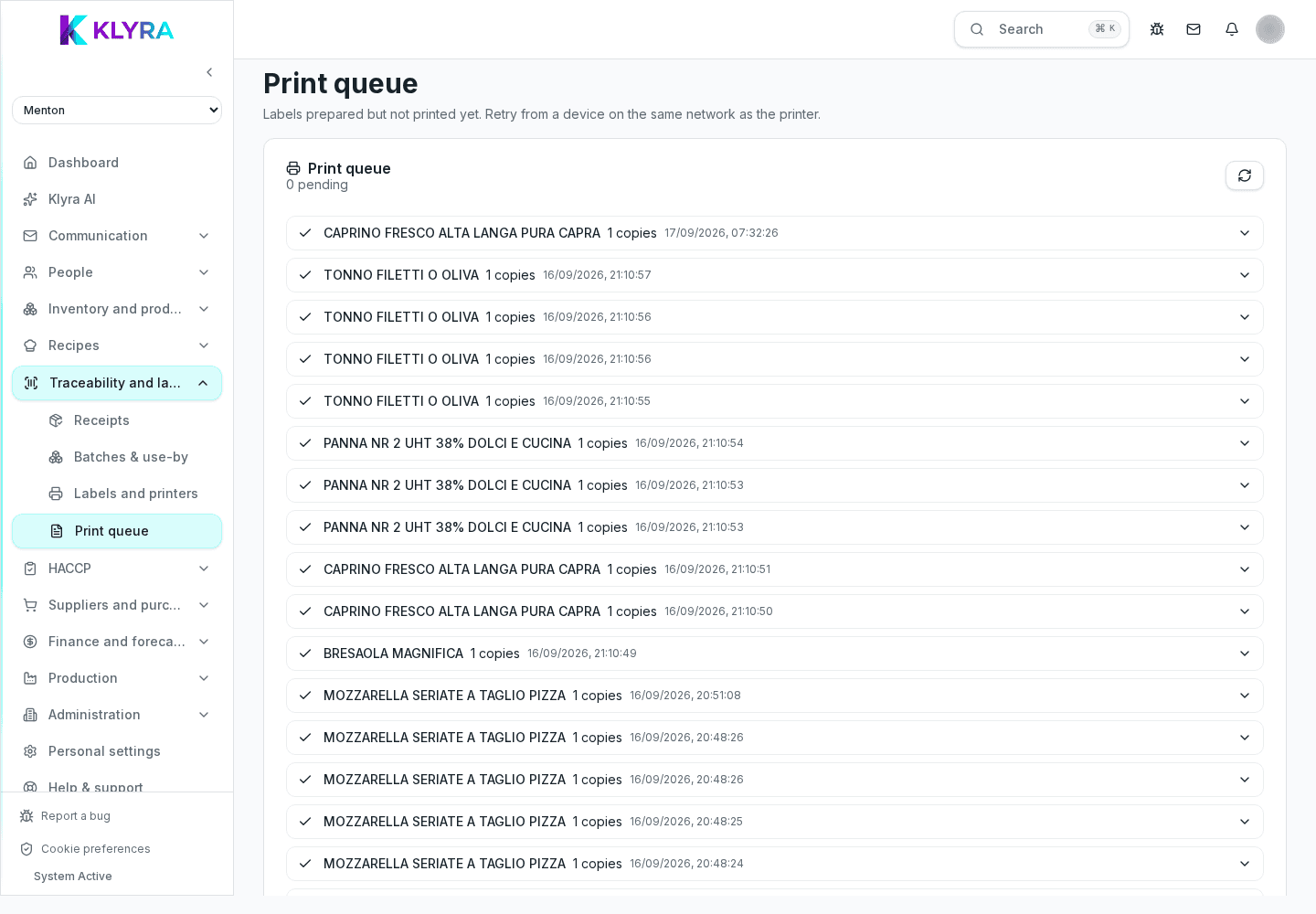
If several labels stay pending, a stuck job in the queue can block the following ones. Cancelling the single stuck job usually clears the queue without needing to restart the printer.
Why does the camera work in other apps but not in KlyraOS?
Camera permission is granted per app: check in the device settings that it is specifically enabled for KlyraOS.
Do I need a specific printer for KlyraOS?
Yes. KlyraOS currently supports the Brother QL-810Wc on the local network with a 62 mm continuous roll. Support for more models is coming soon.
How do I know if the issue is the printer or the network?
Try printing from another device on the same network: if it works, the issue is with the original device, not the printer.
Was this guide helpful?
Still need help?
Describe the issue: page, location, organisation and role are attached automatically.
Contact support