How to send an effective report to KlyraOS support and track the status of your request.
The ladybird-shaped button available on every KlyraOS screen opens a direct channel to support, with the screen and some technical information automatically attached. A well-written report gets solved much faster than a generic description.
When you open the ladybird button, KlyraOS automatically attaches the screen you are on, your role, the active site and technical information about the device: this avoids explaining everything from scratch and speeds up the support team’s analysis.
Describe what you were trying to do, what you expected and what actually happened instead: a message with these three elements lets support reproduce the problem without back-and-forth questions.
Every report sent gets a reference number and stays available in the support requests section, where you can see whether it has been taken over, whether more information is needed from you, or whether it has been resolved.
The ladybird button is the most effective channel for technical problems and malfunctions because it carries the screen context; for commercial or billing requests, the subscription section is preferable instead.
How long does support take to respond?
Response time varies with the severity of the reported issue; blocking requests are handled with priority.
Can I report a problem from Station too?
Yes, the ladybird button is also available on the shared tablets used on site.
Do I need to attach a screenshot manually?
No, the screen is attached automatically; you can still add other photos if useful, for example of a physical device.
Was this guide helpful?
Still need help?
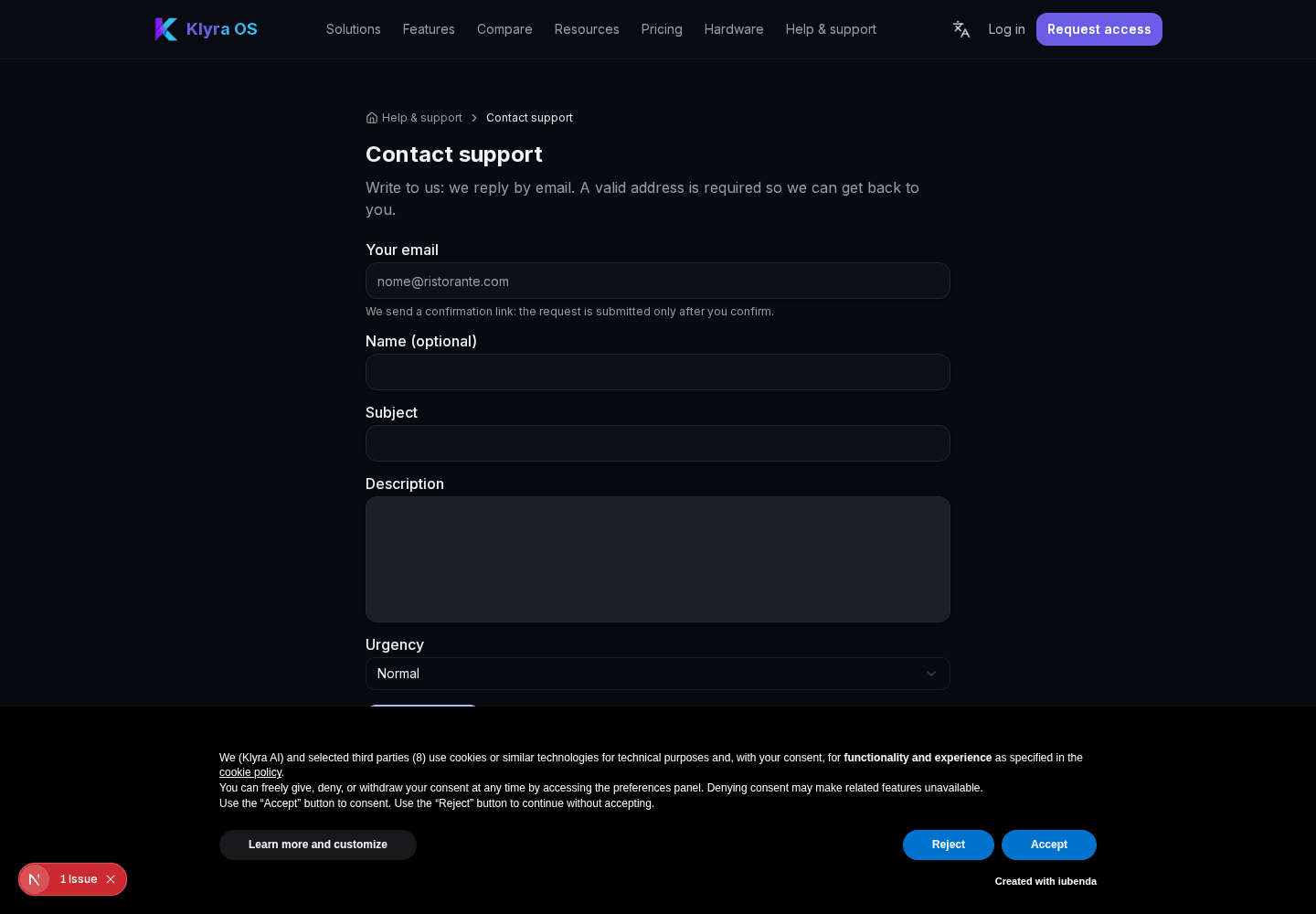
Describe the issue: page, location, organisation and role are attached automatically.
Contact support