How to assign several sites to the same person and check, in practice, what they can see and do.
Many organisations have people working across several sites: an area manager, a trainer, a maintenance technician. KlyraOS lets you assign several locations to the same person, but it is just as important to be able to check, when needed, what that person actually sees.
From the user profile you can select every site the person needs to access, not just one. Each added site widens the visible data, but does not change the level or job function: a person remains a manager or staff member regardless of how many locations they are assigned.
It is good practice to periodically review multi-site assignments, especially when someone changes role or stops covering a location: access left active by mistake is one of the most common causes of data seen by people who should not see it.
Anyone with several assigned sites always sees one active site at a time in the main interface, and can switch it from the selector at the top. Aggregated reports and summaries, where available, instead show data from all assigned sites together.
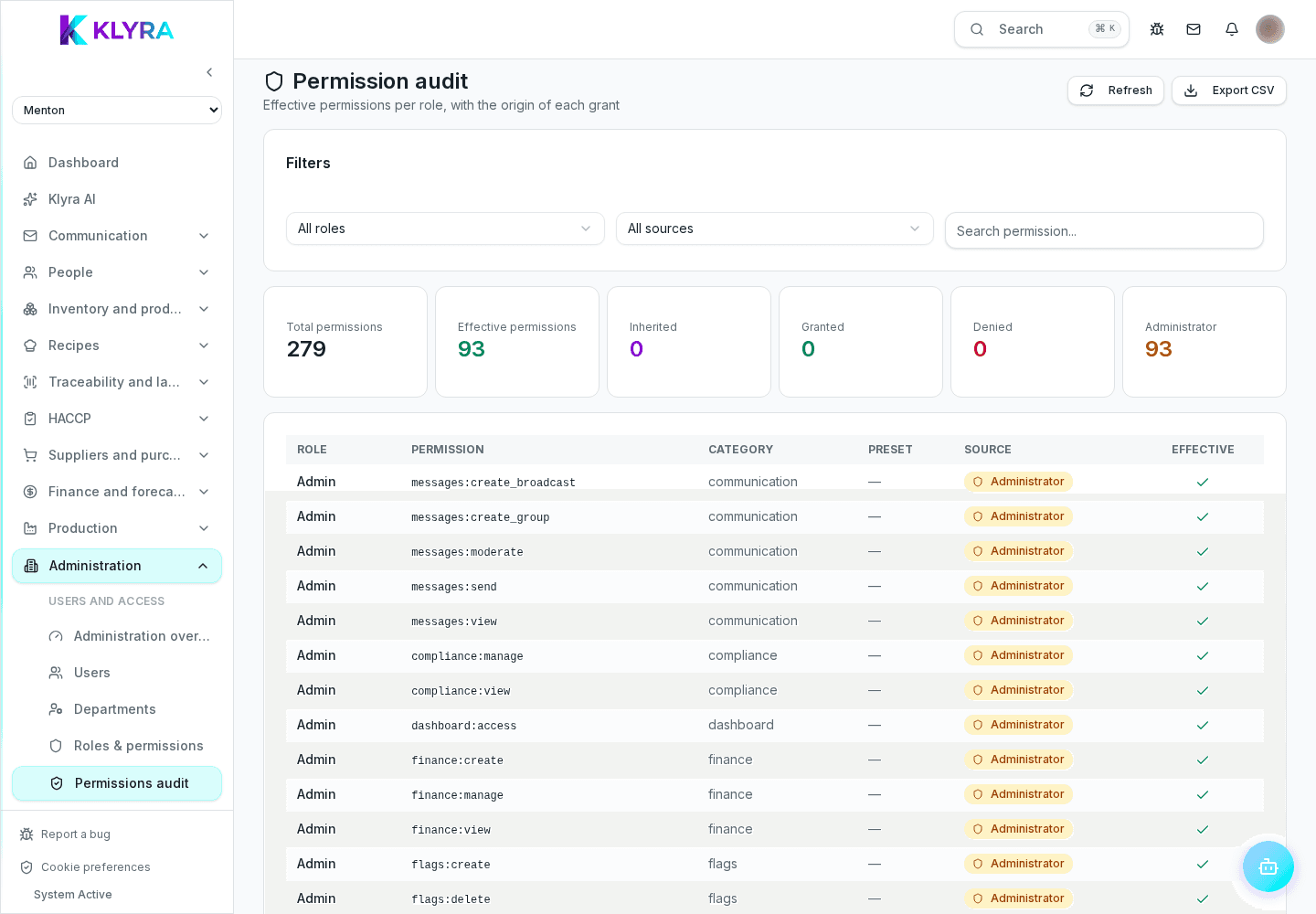
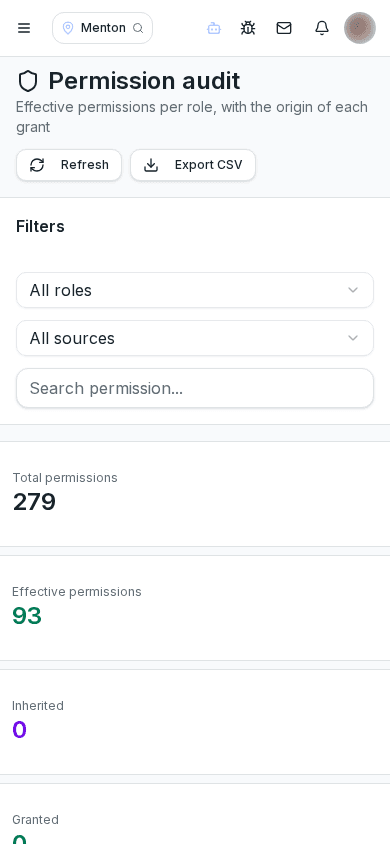
Before assuming permissions are correct just by looking at role and job function, it is worth checking the person’s profile directly: there you find the list of assigned sites and active permissions, including any added manually.
This check is particularly useful after a job function change, an expansion to new sites, or a report from the person themselves saying they cannot see something they need.
It is worth reviewing multi-site access and individual permissions at regular intervals, for example every season or after significant staff turnover, to spot accounts with access that is no longer needed.
Does a person with several sites see all data together?
No, they work on one active site at a time in the operational interface; only aggregated reports and summaries, if enabled, show several sites together.
How do I quickly check what a staff member can see?
Open their profile in the users section: you find assigned sites, level, job function and individual permissions in one place.
Does removing a site delete that person’s history for that location?
No, the history stays in the site’s records; removal only takes away access to it from that point onward.
Should an administrator be assigned every site?
Not necessarily: if the administrator only needs to manage a few sites day to day, it is better to limit assignments and rely on the level for truly global functions.
Was this guide helpful?
Still need help?
Describe the issue: page, location, organisation and role are attached automatically.
Contact support