What happens when a Stripe charge fails: "past due" status, in-app admin alert, 7 days before suspension, and automatic reactivation.
When a site’s automatic charge fails, KlyraOS does not suspend access immediately: it opens a 7-day grace period during which the plan stays fully active, giving time to update the payment method while alerting administrators directly in the app. Only if the window expires without a successful charge is access to plan features suspended.
When Stripe reports a failed charge on a site, the subscription status switches to "past due" and a deadline is calculated, 7 days after the failure, by which the payment must succeed. Until that date the site keeps working with no restrictions.
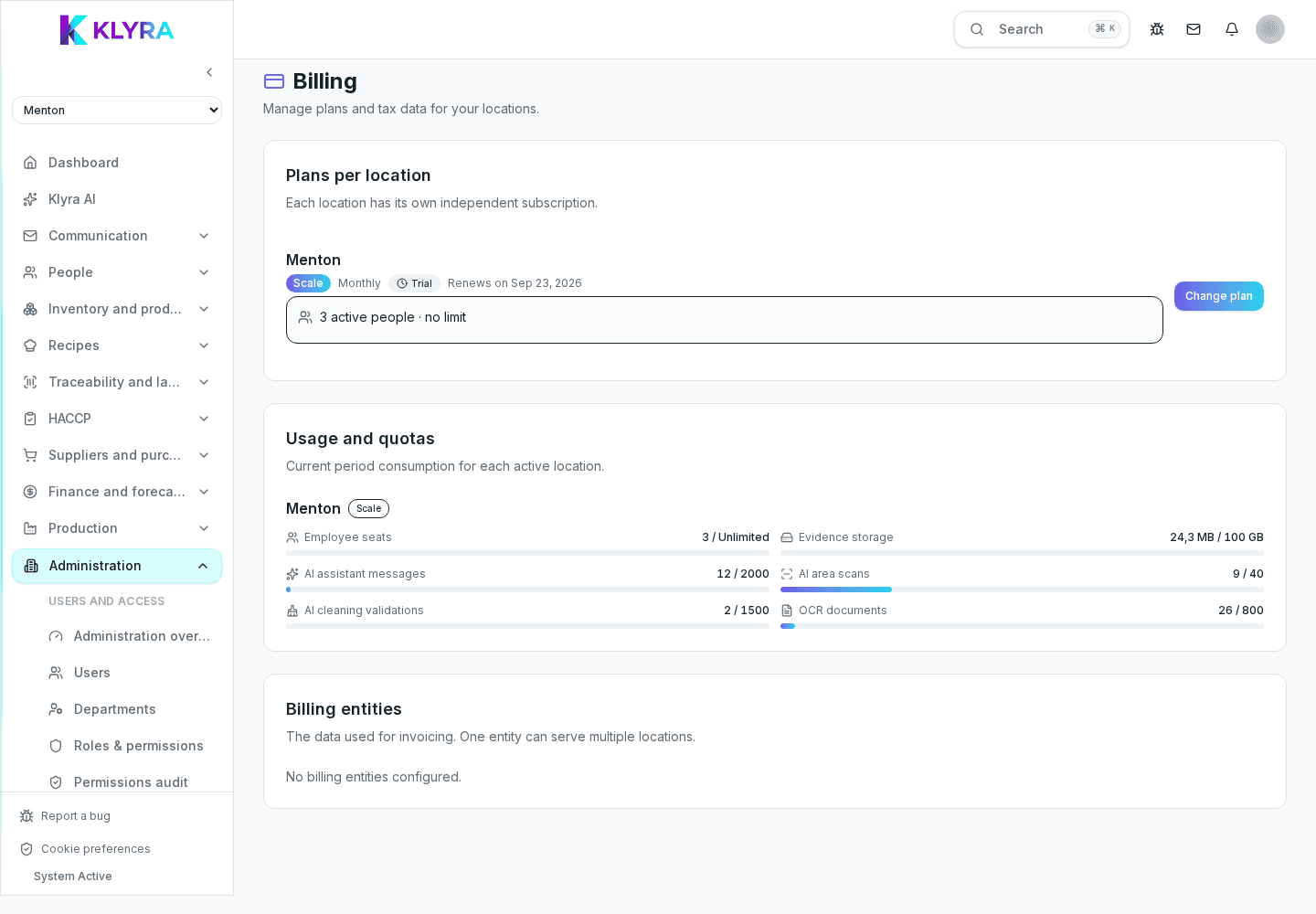
Organization administrators receive an in-app notification indicating the affected site, the "past due" status and the date by which the payment method must be updated. The same information is visible on the Subscription page, on the site’s row.
If no successful charge occurs within 7 days, access to that site’s plan features is suspended: users are blocked from paid features until the payment is settled. The grace period exists precisely to avoid suspending access for a simple hiccup (expired card, temporarily insufficient funds) without needing to act instantly.
Updating the payment method in the Stripe portal (reached via "Manage" from the Subscription page) triggers a new charge attempt: on the first successful payment the status automatically returns to active, whether still within the grace period or already suspended. No manual reactivation request is needed.
How many days do I have to fix a failed payment before suspension?
7 days from the first failed charge: during this grace period the site remains fully active.
Who gets notified when a payment fails?
Organization administrators receive an in-app alert; there is no direct notification to individual employees.
Do I need support to reactivate access after a suspension?
No, just update the payment method in the Stripe portal: access reactivates automatically on the first successful charge.
Does suspension affect the whole organization?
No, only the site whose payment failed; other sites with a current subscription keep working normally.
Was this guide helpful?
Still need help?
Describe the issue: page, location, organisation and role are attached automatically.
Contact support