Difference between a role and a single permission, how location scoping works, single-site vs multi-site managers, expiring overrides and checking the outcome in /admin/roles/audit.
In KlyraOS a role sets a starting package of permissions, but every permission can also be adjusted individually and, most importantly, applied per location. Understanding how role, single permission and location combine is essential to reliably configure who sees what, and where.
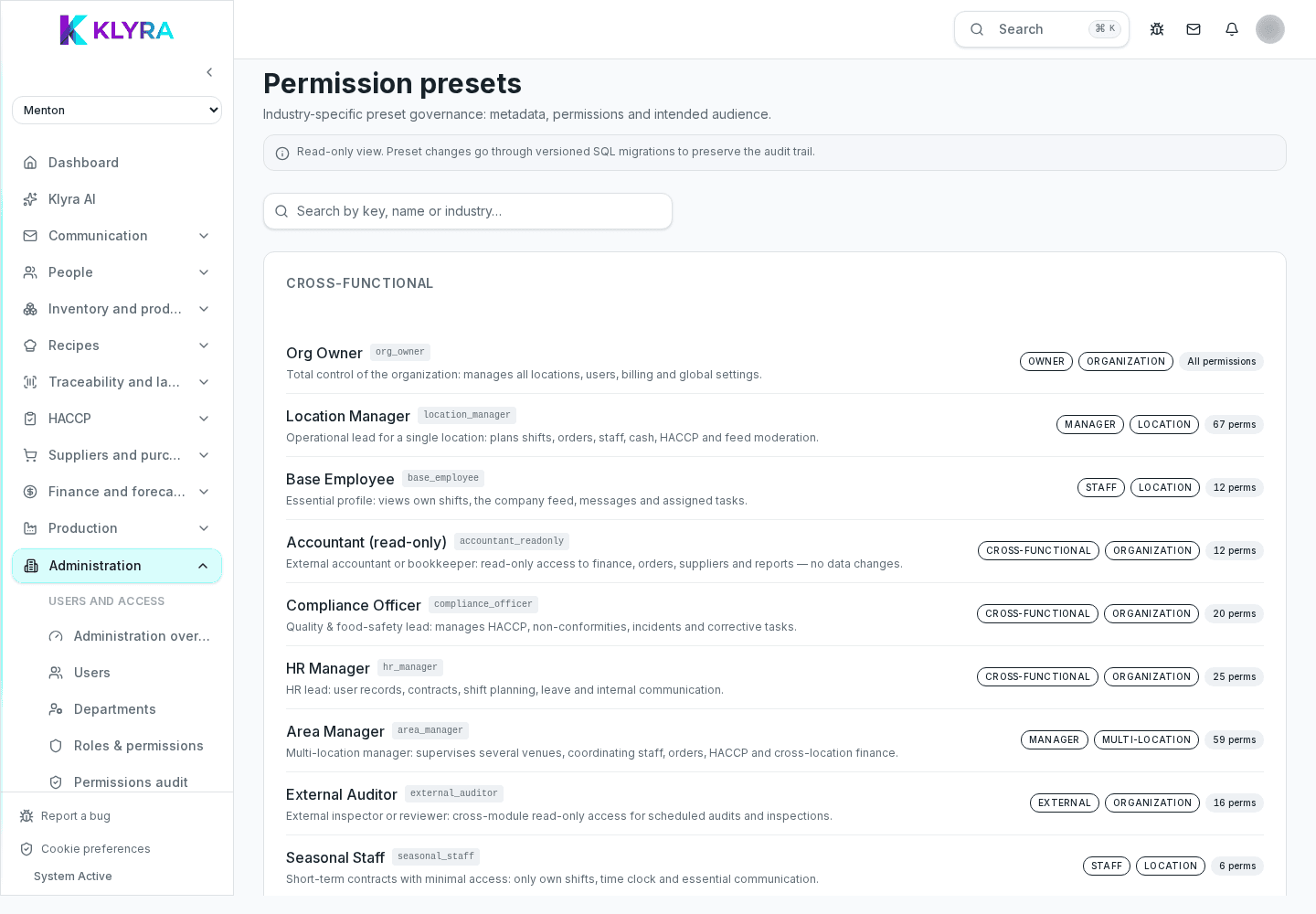
The role (Admin, Manager, Base or a custom role) sets the baseline package of permissions a person has. A single permission is instead a precise rule on one specific function, for example "manage goods receiving" or "approve clock-in corrections", which you can grant or revoke without changing the assigned role.
Working with single permissions is useful when a person needs an exception to their role, without having to create or edit a role for the whole organization.
Roles and permissions never apply generically: they are always tied to the locations a person is assigned to. The same person can have the Manager role at location A and no access to location B, simply because they were never assigned to it.
This scoping is what makes it safe for multiple venues to coexist in the same organization: adding a location to a person expands what they see, removing it excludes them from that data immediately, regardless of the role they keep elsewhere.
A single-site manager sees and manages only the venue they are assigned to: shifts, inventory, HACCP and till of that location alone. A multi-site manager instead has several locations assigned at once and, if their role allows it, can also see aggregated summaries comparing the locations.
The type of manager doesn’t depend on the role name but on the number of locations actually assigned on their user record: two people with the same Manager role can have very different scopes.
For temporary needs, for example covering an absence or a time-limited project, you can grant an override: an extra permission valid only until a date you choose. Once it expires, the permission is withdrawn automatically, with no need to remember it or touch the user record again.
Expiring overrides are preferable to permanent exceptions when you already know the need is time-limited: they avoid leaving widened permissions forgotten once the need is gone.
Before assuming a combination of role, single permissions and locations works as intended, open the permission audit page in Users and permissions (/admin/roles/audit). There you can check, for every person, which permissions are actually active per location, including exceptions and overrides still in effect.
This check is especially useful after creating a custom role, adding an expiring override or changing someone’s assigned locations: the audit page shows the final outcome, not just the individual rules applied.
Does a single permission always override the role?
Yes, a permission manually granted or revoked on a person’s record takes precedence over what the role alone would set for that specific function.
What happens to an override when it expires?
The extra permission is withdrawn automatically on the set date, with no need to touch the user record again.
How do I know if a manager is single-site or multi-site?
Check the list of assigned locations on their user record: if there is more than one, they are a multi-site manager.
Where do I check what a person really sees after all the changes?
On the permission audit page (/admin/roles/audit), which shows the permissions actually active per location, including exceptions and overrides.
Was this guide helpful?
Still need help?
Describe the issue: page, location, organisation and role are attached automatically.
Contact support